Un-Send an email with Gmail


Published on May 15, 2015
Published on Wealthy Affiliate — a platform for building real online businesses with modern training and AI.
Update - 6/26/15
Gmail has moved the "Unsend" feature to the "General" tab of the "Settings" menu; it's no longer a beta feature under the "Labs" section.
The delay before sending is also now user-settable with options for 5, 10 (default), 20, or 30 seconds before the email is sent.
=======
Have you ever hit "Send" on an email and immediately gotten that "Oooops!!!! WHAT HAVE I DONE?" feeling? Gmail has a cure for that. By enabling a feature called "Unsend", you'll have ten seconds to cancel sending the email.
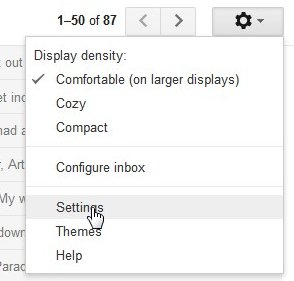
Log into your Gmail account, click on the gear icon, and then on the "Settings" entry:
Ready to put this into action?
Start your free journey today — no credit card required.
On the Settings page that opens, click on the "Labs" tab at the top: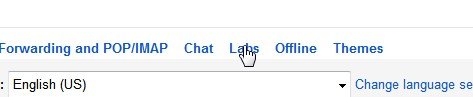
Scroll down the page to find the "Undo Send" feature and click "Enable" to activate it:

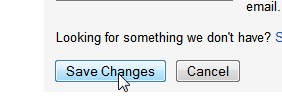
Scroll to the bottom of the page and click on "Save Changes":
When you next hit "Send" on an email, you'll have the option (for 10 seconds) to undo the sending of that email:
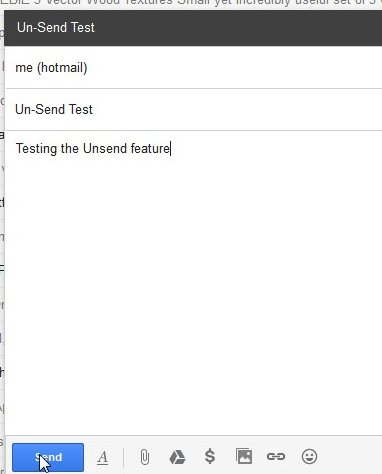
Clicking on "Send" brings up this popup window which gives you a chance to undo the sending of the email:
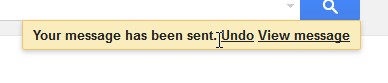
Clicking the "Undo" within 10 seconds brings up this popup:
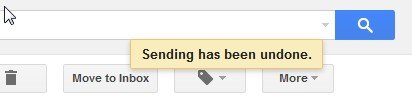
You can now remove those "extra" people on the "To:" list (or tone down your language) and save yourself a bit of embarrassment. :=)
Share this insight
This conversation is happening inside the community.
Join free to continue it.The Internet Changed. Now It Is Time to Build Differently.
If this article resonated, the next step is learning how to apply it. Inside Wealthy Affiliate, we break this down into practical steps you can use to build a real online business.
No credit card. Instant access.