How to Add Reading Time to Your Blog Posts using PHP Code


Published on April 23, 2025
Published on Wealthy Affiliate — a platform for building real online businesses with modern training and AI.


If you would like to add a reading time to your blog posts, you can install and activate the Read Meter plugin, which works just fine.
I was earlier hoping to find a no-plugin solution, and eventually found a way to do it using code.
Unfortunately, it still requires me to download the WPCode plugin to insert the PHP code. So, I still end up with 1 more plugin on my website. :p
This is how it looks.
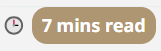
If you are interested in using a bit of code for the fun of it, here is a step-by-step guide to do so.
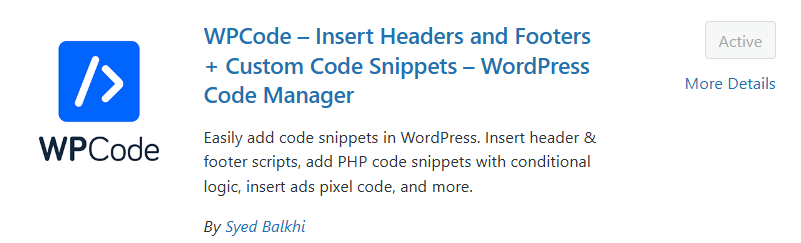
Step 1 - Download WPCode Plugin
Install and activate the WPCode plugin
Step 2 - Add the Code
Follow the steps below:
2.1 - Click on Add New

2.2 - Click on "Add Custom Snippet"
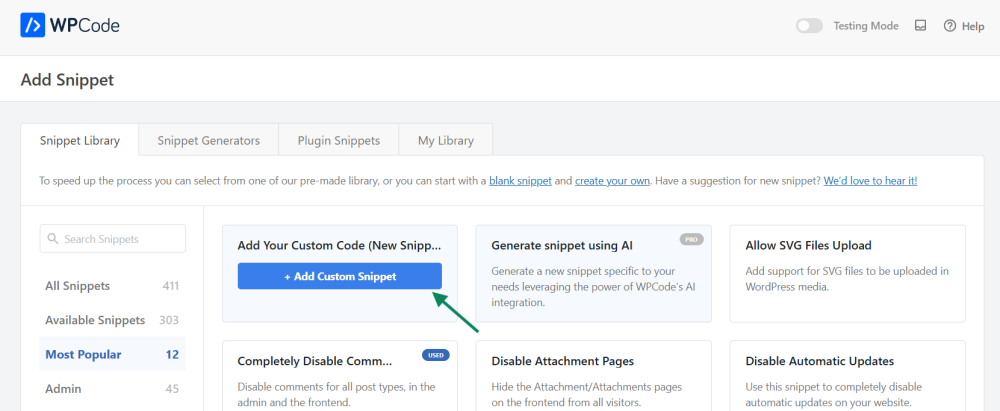
2.3 - Select PHP Snippet
Ready to put this into action?
Start your free journey today — no credit card required.
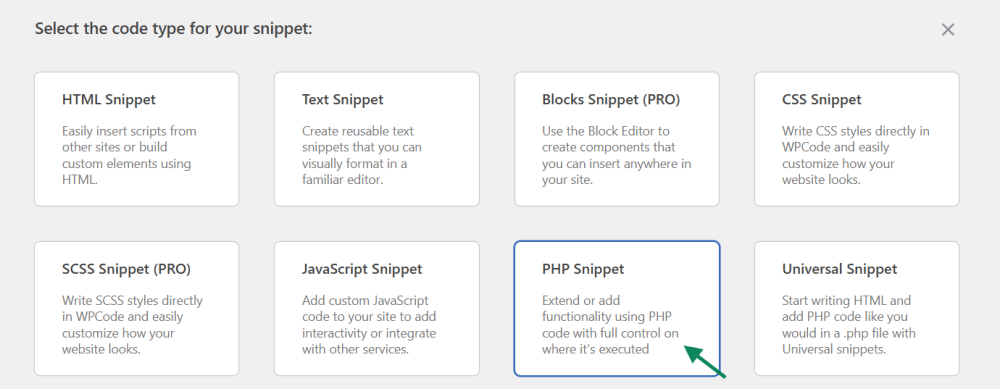
2.4 Add a title (e.g. Estimated Reading Time) and code in Code Preview
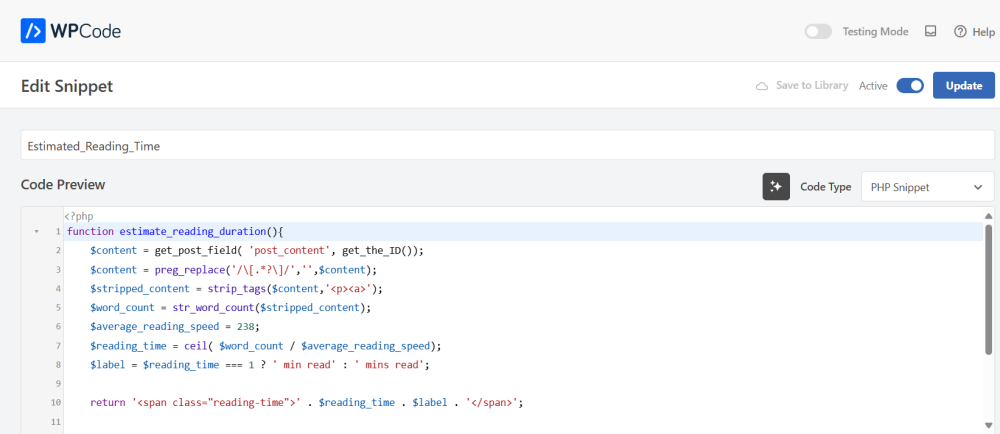 The full code I used is as follows:
function estimate_reading_duration(){
$content = get_post_field( 'post_content', get_the_ID());
$content = preg_replace('/\[.*?\]/','',$content);
$stripped_content = strip_tags($content,'<p><a>');
$word_count = str_word_count($stripped_content);
$average_reading_speed = 238;
$reading_time = ceil( $word_count / $average_reading_speed);
$label = $reading_time === 1 ? ' min read' : ' mins read';
return '<span class="reading-time">' . $reading_time . $label . '</span>';
}
add_shortcode( 'read-estimate', 'estimate_reading_duration' );
the
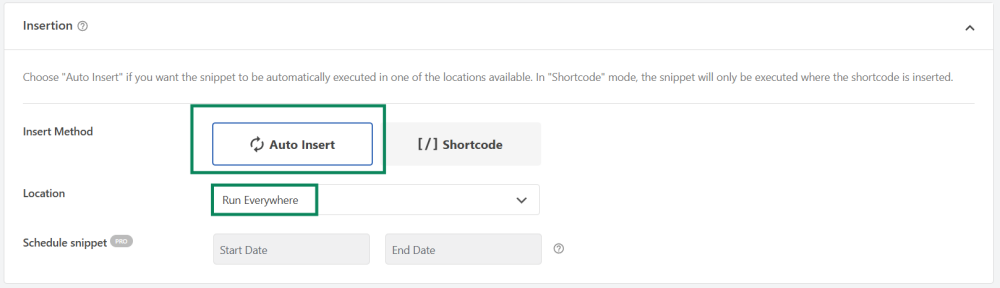
2.5 - Select Auto Insert and Location 'Run Everywhere'.
In the Insertion section, click on Auto Insert and for Location, choose 'Run Everywhere'. Click on 'Save Snippet' on the top right.
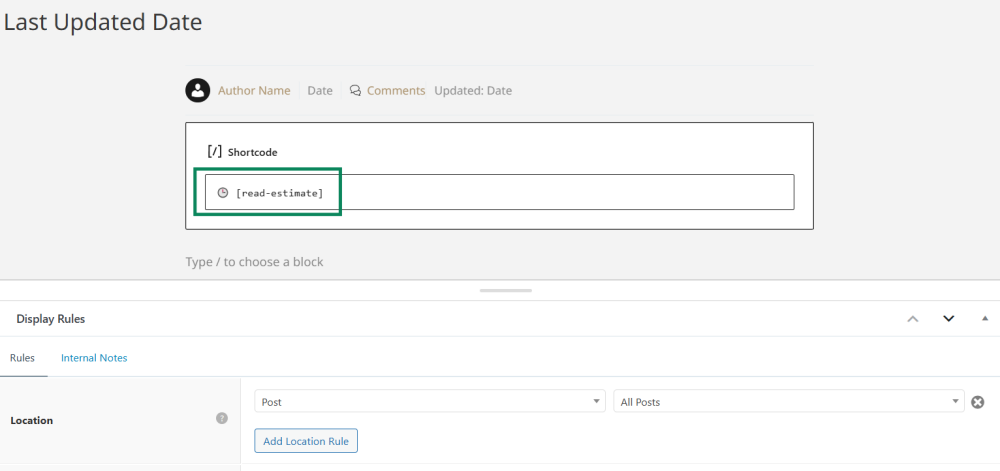
2.6 - Add Shortcode [read-estimate]
I used the GeneratePress Premium theme, so I used Block Elements to apply this shortcode.
As shown below, one interesting decoration is that I can add a Clock emoji in the shortcode.
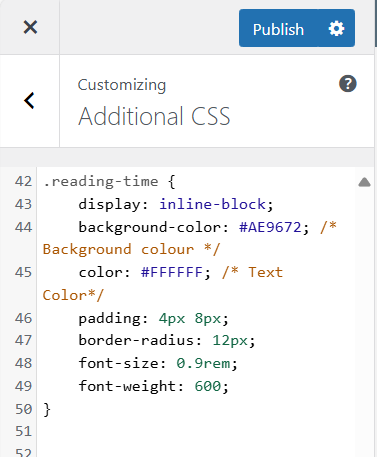
2.7 - Go to Customizer to add CSS
Add the Additional CSS below to style your reading time. You can change to your brand colours accordingly.
.reading-time {
display: inline-block;
background-color: #AE9672; /* Background colour */
color: #FFFFFF; /* Text Color*/
padding: 4px 8px;
border-radius: 12px;
font-size: 0.9rem;
font-weight: 600;
}
Once the above is done, you should see the reading time appearing in your blog posts.
Hope this is useful to you!
Regards,
Richard
p.s. Special thanks to Phil (@feigner), Andrej (@apache1) and Richard (@richardgb) for your inputs.
Share this insight
This conversation is happening inside the community.
Join free to continue it.The Internet Changed. Now It Is Time to Build Differently.
If this article resonated, the next step is learning how to apply it. Inside Wealthy Affiliate, we break this down into practical steps you can use to build a real online business.
No credit card. Instant access.