Another Way to Create a Cool Logo for your Business (for FREE!)


Published on December 31, 2023
Published on Wealthy Affiliate — a platform for building real online businesses with modern training and AI.


I just watched Class 4, "Creating a Professional Logo," in the new HUBS training. After reading the printed content (and watching the video!) I whipped out 2 logos that I really liked and posted them to my sites. Super easy! (But watch the video.)
I was so pleased, I went upstairs and showed my partner. He responded by showing me another (FREE!) way to create a logo. I tested his approach and, sure enough, it produced some very nice logos.
I described his method in the Comments section of Lesson 4, but I thought I might also share his clever tip in a post, so I can add better directions for anyone who wants to try it.
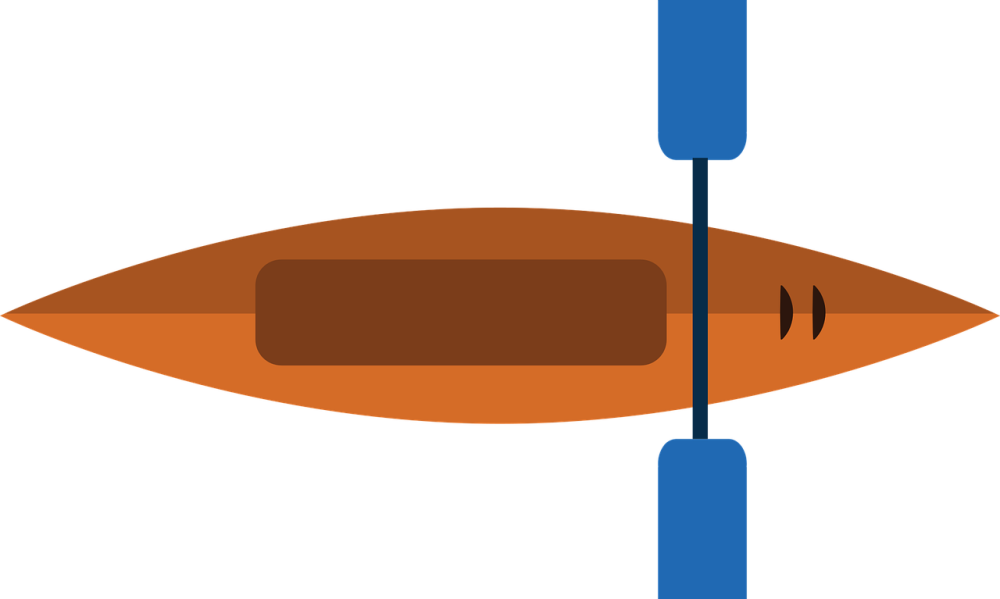
So, start by selecting a public domain image.
I chose a Pixabay vector image.
For the purposes of this example, a kayak. This is the image:
 I then went to Microsoft Copilot.
Not Microsoft Bing Chat.
While you can perform the same steps in Bing Chat, it seems to be less successful in returning images than Copilot.
NOTE: In theory Copilot is just a rebranding of Bing Chat (which occurred sometime around November of 2023). In terms of UX, while I find them to be very similar, the images and information each returns suggest somewhat different capabilities. Copilot seems to be better with images. But as there is no cost to do this, feel free to test both.
Back to creating a logo.
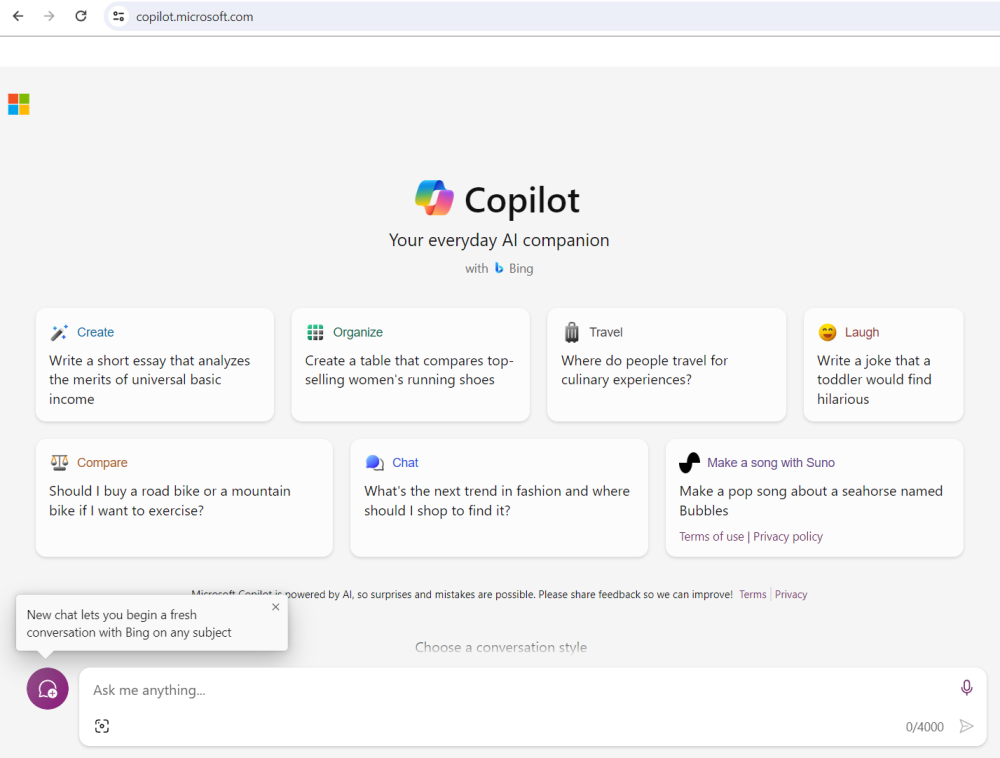
This is what you should see when you log on to Copilot.
You can then select a "conversation style" (just as with Bing Chat).
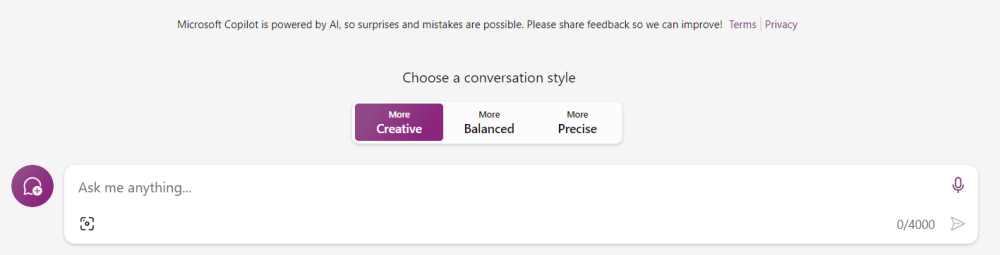
I chose "More Creative." It seemed right for the task.
Then you only need to do two more things.
(1) Drag and drop your image into the conversation window, like so:
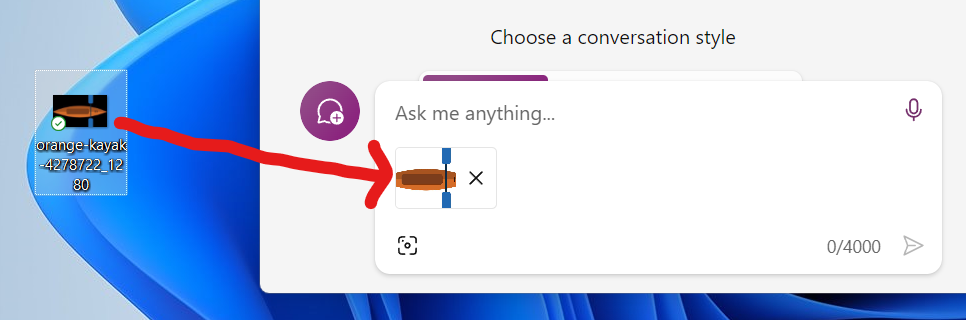
(2) And add a text prompt in the same window (where it reads "Ask me anything ...").
Ready to put this into action?
Start your free journey today — no credit card required.
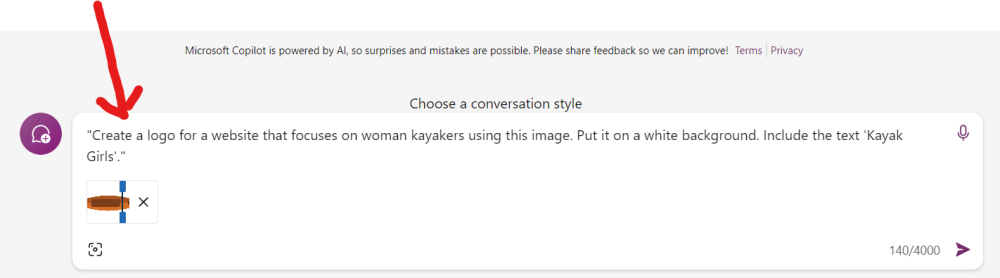
I used the prompt: "Create a logo for a website that focuses on woman kayakers using this image. Put it on a white background. Include the text 'Kayak Girls'."
And once I added it, the Copilot conversation window looked like this:
Then just hit "Enter."
It may take Copilot a little while to respond.
NOTE: Copilot may even return a few messages suggesting it cannot process your request, but give it a second. Even after initially returning those messages on several occasions, Copilot still ultimately successfully generated an image in response to my request without further action on my part.
Once you see this, you know you are good!
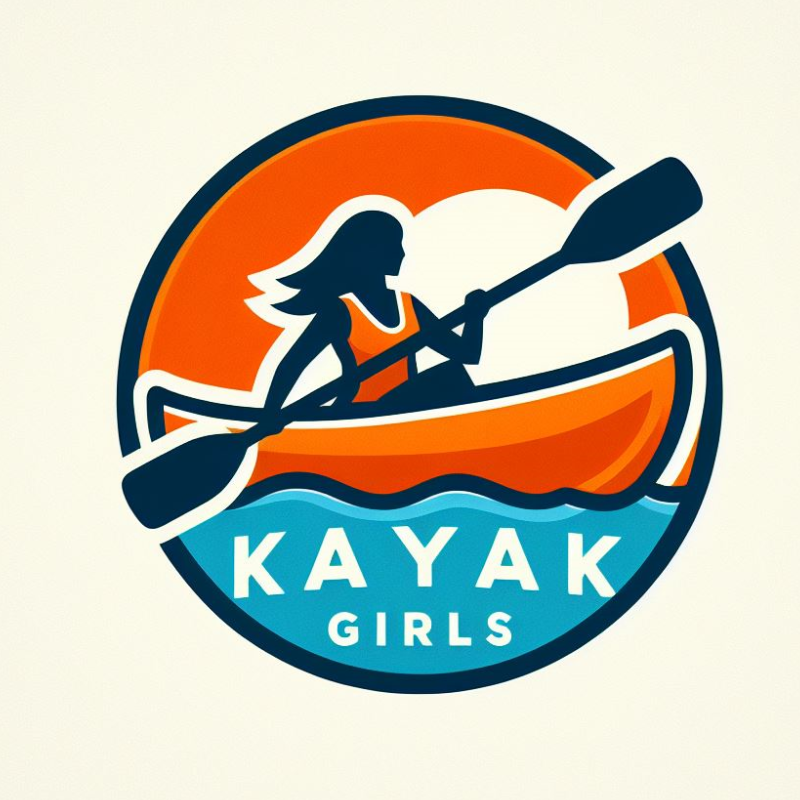
Here are several images Copilot returned in response to my request that it create a logo.

And here's one without text:
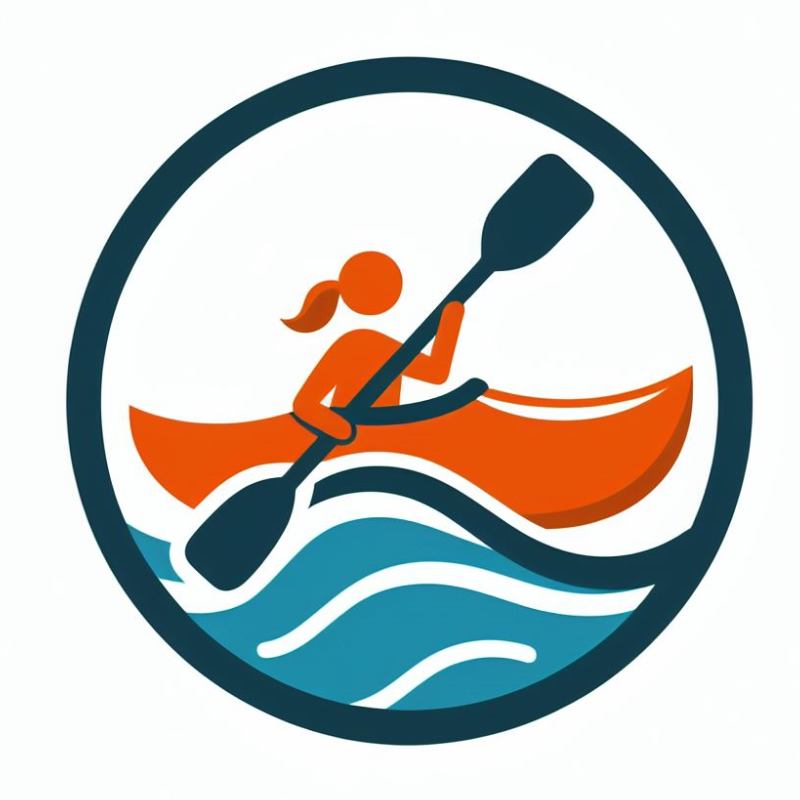 You can repeat this as many times as you like until Copilot generates a logo you like.
Copilot will generate images in sets of four, like so:
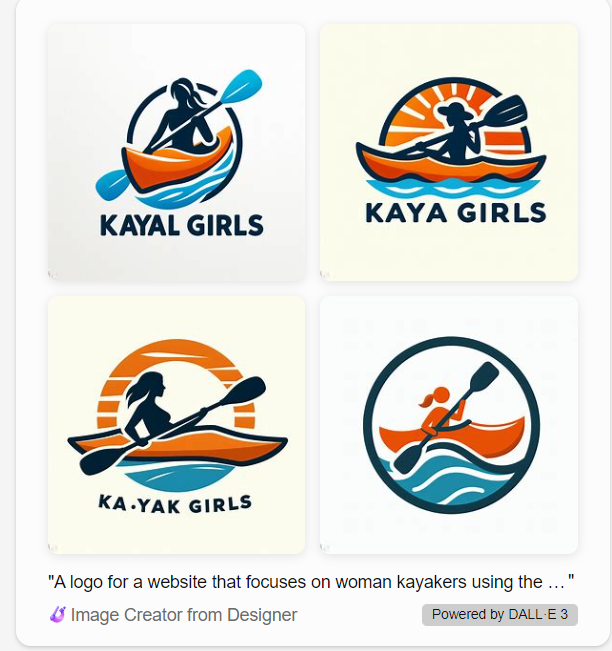
You will see that Copilot (like other AI image creation tools) sometimes has trouble with spelling. Though you can also see (from the first two "Kayak Girls" logos) that this is not always the case.
If you are having trouble with spelling errors you can always specify "no text" in your prompt (as Kyle demonstrates in the video in Class 4). And you can also add text in Canva (again, as Kyle demonstrates in the video in Class 4). You will be amazed at the image editing tools that Canva makes available for free!
Once you have a logo you like, select it by hovering over it and clicking on it.
Once you do this, a new screen will open like this:
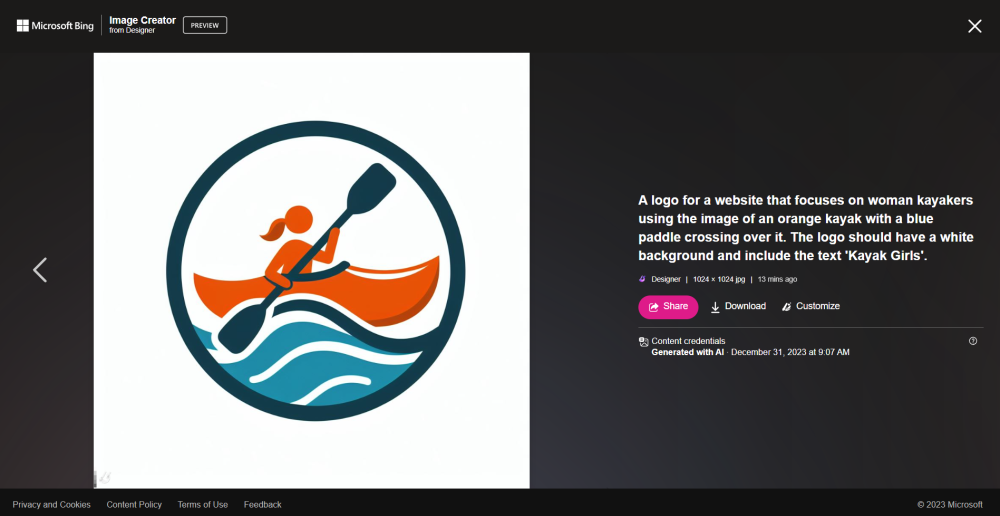
Click "Download" ...
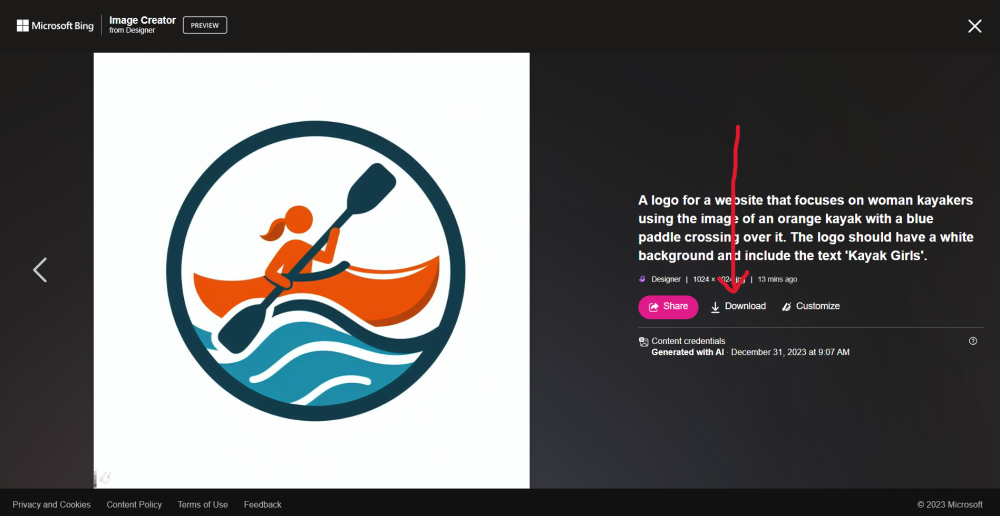
And save your new logo to your computer. (Class 4 recommends saving images as PNG files.)
BONUS:
Kayaking is a popular niche, but it is not mine. So feel free to help yourself to any of the images from this post.
Also, at the time of the post, "kayak girls" was available as a .com domain.
Hope this helps!
P.S.
The cover image was also created by Copilot.
I started with this Pixabay image (which is kind of cute in its own right):
 And wound up with this:

Share this insight
This conversation is happening inside the community.
Join free to continue it.The Internet Changed. Now It Is Time to Build Differently.
If this article resonated, the next step is learning how to apply it. Inside Wealthy Affiliate, we break this down into practical steps you can use to build a real online business.
No credit card. Instant access.