Midjourney AI Art Generator. What Is It? How To Sign up? How To Use It?


Published on April 15, 2023
Published on Wealthy Affiliate — a platform for building real online businesses with modern training and AI.

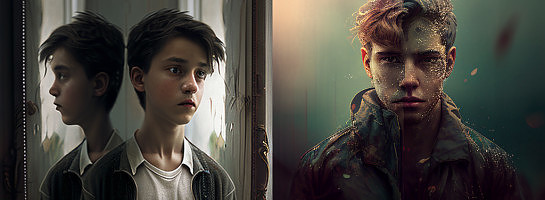
A few of you have asked me what I use for some pictures on my website and here at Wealthy Affiliate in my blog posts. So here it is:
The images I use in my posts are mostly art I have created with Midjourney. Before that, I used stock images from the WA library, which are great but somewhat limited and repetitive, mainly when others use them. Also, Midjourney generates unique art every time. So you may see similar ones but never identical ones.
What is Midjourney AI Art Generator?
Midjourney AI art generator is a GPT (Generative Pre-Trained Transformer). The way GPT works is that it has a massive dataset from everything publicly available on the internet. Using billions of parameters, like formulas, it can create new art from all it has collected. Furthermore, it learns on the way to be better. Just like ChatGPT but with images. The chance that two generated images or art will be the same is 1 to a vast number. I dare to say infinite.
Midjourney is only one of the GPTs. There is also DALL-E, Deepai, Shuttershock and a bunch of others. More reveal themselves every day. I use Midjourney. I love its style, and I am a big Discord fan. It's not as user-friendly as others, and it's a nerd-land, but you can get used to it.
What is Discord?
I mention Discord because you will need an account with them to use Midjourney. Midjourney is basically a bot within Discord. It's loved chiefly by geeks, nerds, and videogame fanatics - like myself - but others picked it up too. It is a chat platform designed for gamers to chat during online gaming. Discord is known for the clever use of bots that server owners like myself can create and use. Bots respond to commands after the forward-slash (/).
Signing up
Ready to put this into action?
Start your free journey today — no credit card required.
- If you have Discord, you can skip this step. If you don't, create an account here: https://discord.com
- Go to https://midjourney.com and connect your Discord account.
- Pay up (No, Midjourney isn't free, but it's not expensive either. I don't know how much it is for Americans and others, I pay £12/month)
Using Midjourney
Now that you are all set, go to your Discord, and you will see Midjourney Bot showing up on the left side of your chat. There are many different commands you can use, but you can learn that on the go; I will tell you the three you most likely want to use:
- /imagine [prompt] - It's the most frequent you will use. This is the command that generates your art. For example /imagine an ape playing a videogame:
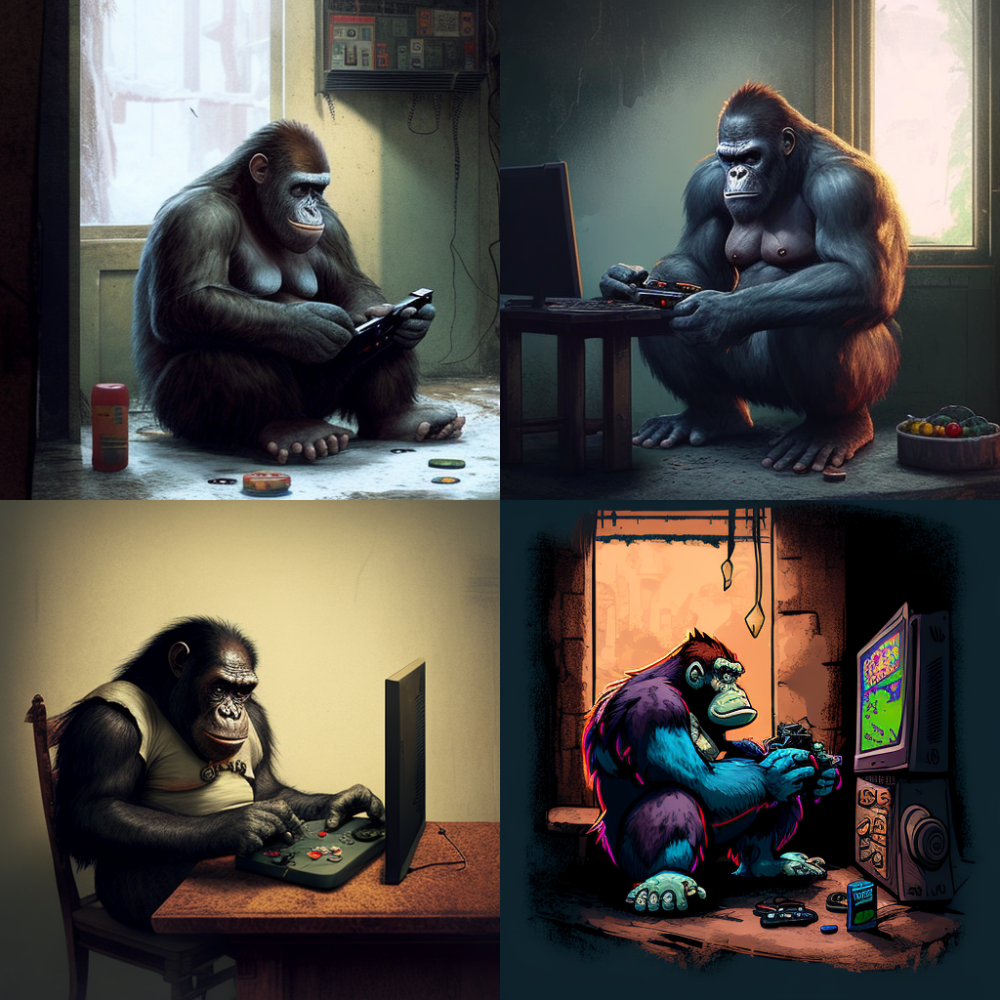
Just like that. You get four options on one run. Then you can ask for different variations (V1, V2, V3, V4); you can choose the one(s) you like so the AI will generate an upscaled version of it (U1, U2, U3, U4) or simply regenerate the prompt with a click if you are unhappy with the results. Change your prompt with the same command /imagine if you are still unsatisfied.
- /describe [image]: - it will open your library and ask you to select a picture. I chose a photo of the clock on my wall.
The image is pretty blurry, but you can see that the AI mostly got it right:
- a black Roman clock on the wall near a desk, in the style of raw metallicity, high quality
- a clock with Roman numerals hanging on the wall, in the style of made of wrought iron, meticulous design, precise perspective, heavy inking, contemporary diy, tondo, great detail
- a dark grey wall clock with Roman numerals in the style of made of wrought iron, close-up, skeletal
- a wall clock with Roman numerals on white, in the style of made of wrought iron, dark bronze, Ryan Ottley, close up, Sydney prior hall, skeletal, dark beige
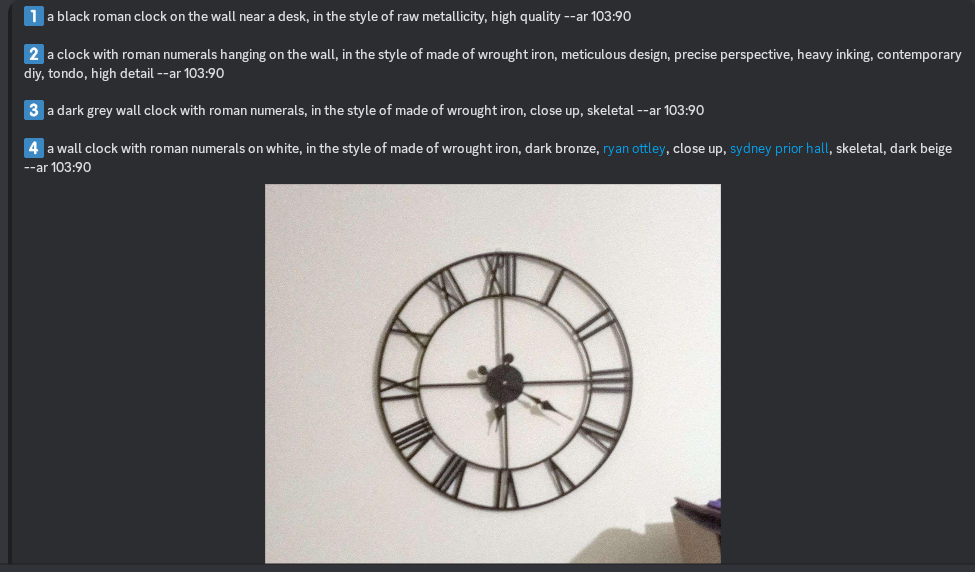
Pretty mad, innit? It's a clever tool to save you work and time when you want to add descriptions to your website images.
- /blend [image1] [image2] - blends your chosen images. You can add four more, but I only did two for this example. One was the Clock image I took, and the other was the fourth version (the cartoonish) of an ape playing a videogame.
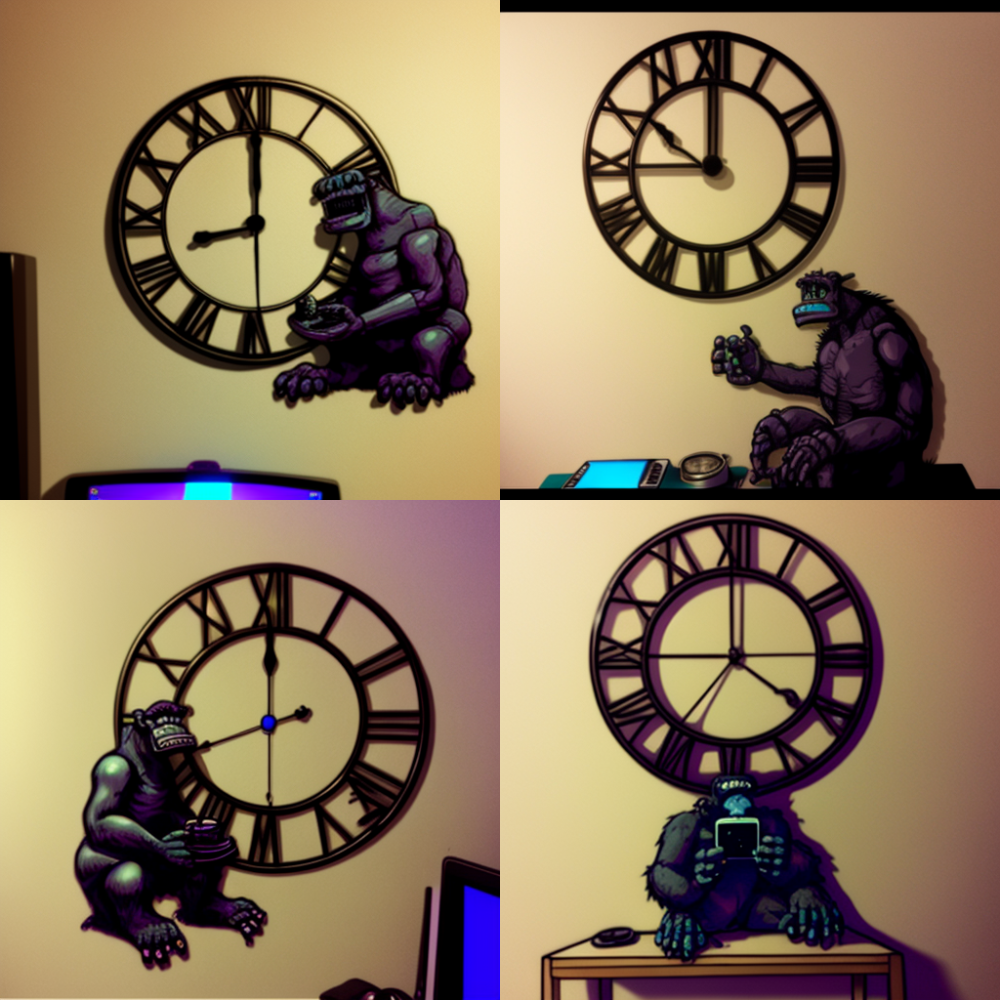
As you can see, the first four results aren't mindblowing and need some fine-tuning, but it gives you an idea of how the /blend command works:
I hope this basic introduction helps; if something isn't clear, please ask below in the comments, and I will help you.
So, that.
Share this insight
This conversation is happening inside the community.
Join free to continue it.The Internet Changed. Now It Is Time to Build Differently.
If this article resonated, the next step is learning how to apply it. Inside Wealthy Affiliate, we break this down into practical steps you can use to build a real online business.
No credit card. Instant access.