Top 10 Video Editing Software for YouTube in 2026


Published on September 18, 2026
Published on Wealthy Affiliate — a platform for building real online businesses with modern training and AI.

Choosing video editing software for YouTube can feel harder than making your first video. Beginners have dozens of options with different prices, learning curves, device requirements, and AI features, so the editor that works for one creator may slow down another.
Your best choice depends on the videos you plan to make, your budget, the platform you use, and how you want your channel to grow. This guide compares 10 tools, including simple mobile and browser editors, powerful desktop programs, and software built for talking-head videos and Shorts. If you're also building traffic around your channel, this YouTube video traffic startup guide can help connect your editing workflow to a broader content plan.
Pricing and features can change, so confirm the current details before subscribing. First, let's compare the 10 editors and see which ones fit your channel best.
Key Takeaways
- The best YouTube video editor depends on your budget, device, editing experience, and content style.
- Beginners can start with free tools such as DaVinci Resolve, while Final Cut Pro offers a paid Mac option.
- Adobe Premiere Pro suits creators who want advanced desktop features and a broader Creative Cloud workflow.
- CapCut and Canva are useful for quick edits, Shorts, templates, and browser-based projects.
- Your editor should support clean cuts, captions, thumbnails, and exports that match your YouTube SEO and analytics training, not just impressive effects.
How to Choose Video Editing Software for YouTube
The best video editing software for YouTube should match your content, device, budget, and editing habits. A beginner usually benefits more from a clear workflow than from dozens of advanced effects.
Before choosing, consider how quickly you can learn the editor, whether it runs on your computer or phone, and whether it exports videos in the quality YouTube supports. YouTube publishes recommended upload encoding settings, so check resolution, frame rate, file format, and audio options before committing.
Match the Editor to Your YouTube Video Style
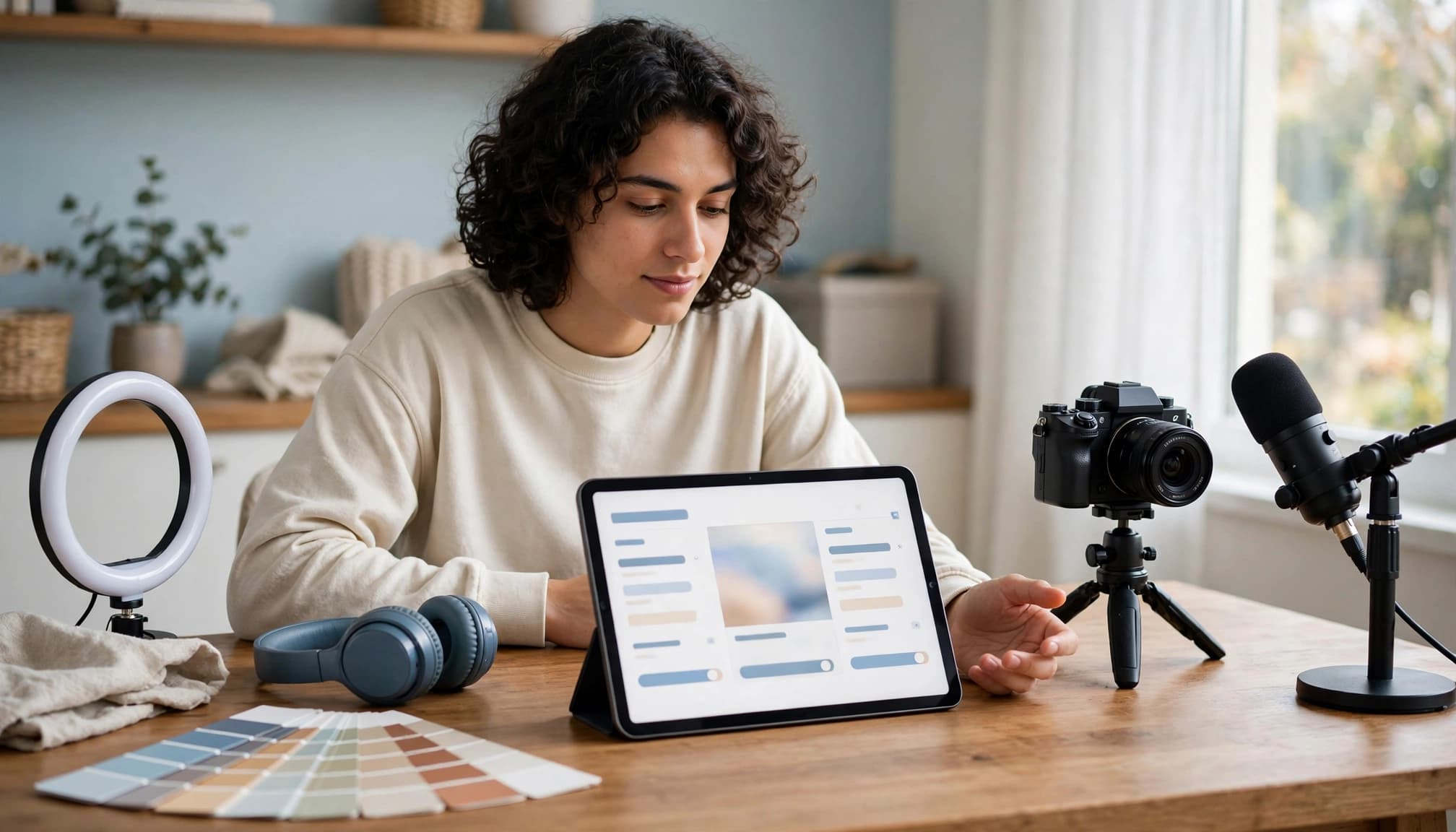
Your format should guide your choice. Talking-head creators may prefer Descript because they can edit through a transcript, remove filler words, and rearrange spoken sections without working entirely on a traditional timeline.
Screen recordings and tutorials need reliable narration, cursor control, zooms, captions, and clear audio. Product reviews and affiliate marketing videos often need b-roll, comparison graphics, branded overlays, and music controls. A full desktop editor is usually better when videos include several visual and audio layers.
Gaming videos also benefit from desktop software with multicam support, audio mixing, effects, and precise cuts. For Shorts, CapCut is a practical choice because it focuses on quick, vertical, short-form editing. Canva fits branded promotional clips, simple explainers, and affiliate content that depends on consistent colors, fonts, and reusable templates.
Interviews require clean dialogue editing, separate audio tracks, and easy caption tools. Before choosing, review these YouTube video production and editing lessons if you need help planning a repeatable workflow.
Understand Free Plans, Watermarks, and Export Limits
A free plan can be enough for a new channel, especially when you're testing your niche. However, check the restrictions before building your workflow around it. Look for:
- Trial-only access, watermarked exports, or limits on video length.
- Restricted 720p, 1080p, or 4K exports, plus capped frame rates.
- Limited AI credits, transcription hours, storage, or cloud projects.
- Branded templates, missing advanced effects, or reduced audio tools.
- Weak customer support when a project fails or an export stalls.
Also compare subscription pricing with one-time purchases. A subscription may include regular updates, cloud storage, templates, and AI tools, but the cost continues each month. A one-time purchase can offer better long-term value if you prefer a stable desktop editor and don't need online features.
Use this short checklist before selecting a plan:
- Can I edit comfortably on my device?
- Does it export the resolution and format I need?
- Will captions, audio cleanup, and templates support my video style?
- Are watermarks, storage, or AI credits limited?
- Will the price still make sense when my channel grows?
The editor with the most features isn't automatically the best choice. Extra tools can slow you down when you only need clean cuts, readable captions, balanced audio, and consistent branding.
Top 10 Software for Video Editing and YouTube in 2026
These first five tools help new creators publish quickly without mastering a complex editing suite. They focus on templates, captions, branding, and simple workflows, although each one has limits as your channel becomes more advanced.
CapCut: Best for Shorts, Captions, and Fast Mobile Editing
CapCut is popular with new creators making YouTube Shorts, Reels, and quick tutorials because the workflow is fast and approachable. You can edit on mobile, desktop, or the web, then change between vertical, square, and horizontal formats with little effort.

Templates, auto-captions, music, filters, transitions, and simple effects reduce the time between recording and publishing. The free tier is generally generous, while Pro adds premium assets, extra AI features, and other advanced options. However, review current export quality, watermark behavior, storage, and AI limits before relying on a specific feature.
CapCut works best for mobile-first creators and beginners who value speed over detailed control. Its main weakness is originality. If you publish templates without changing the pacing, captions, and visual style, your videos may look similar to thousands of others. These YouTube Shorts affiliate marketing strategies can help you turn quick edits into a more focused content plan.
Canva: Best for Branded Videos and Simple Marketing Content
Canva is a web-first choice for creators who need polished intros, thumbnails, promo clips, slides, affiliate videos, and social posts. Its drag-and-drop editor has a short learning curve, while templates help you maintain consistent colors, fonts, and layouts.
You can resize projects for different platforms, add stock media, and save brand controls for repeated use. The free plan includes useful templates and assets, but Pro expands the stock library, premium designs, brand tools, and background-removal features.
Canva fits marketing channels and creators who want clean visuals without a detailed editing timeline. It isn't the strongest option for advanced color correction, complex audio mixing, or projects with many layered clips. Choose it when branding and publishing speed matter more than frame-by-frame control.
Filmora: Best All-Around Editor for New YouTubers
Filmora gives beginners a friendly desktop workflow on Windows and Mac. It includes transitions, effects, titles, screen-recording or creator tools where available, and simple AI-assisted features for tasks such as captions and cleanup.
The layout is easier to learn than many professional editors, so Filmora works well for tutorials, reviews, vlogs, and general YouTube videos. Wondershare commonly offers annual plans and perpetual license options, although pricing varies by region, billing term, platform, and plan updates.
The free trial lets you test the editor, but exported videos commonly include a watermark. Paid plans can remove it and may add premium assets, higher export options, storage, or AI credits. Filmora suits beginners who want room to grow, provided they budget for features beyond the trial.
Clipchamp: Best for Simple Browser-Based Editing on Windows
Clipchamp fits creators who want a simple browser editor or a Windows-centered workflow. Its timeline supports basic trimming, text, music, stock media, templates, webcam recording, and screen-based videos without demanding a powerful editing setup.
The free tier can work for short tutorials and quick social clips, but check current export resolution, stock access, storage, and paid-plan limits before publishing regularly. Microsoft updates plan details, so confirm the latest terms through the Clipchamp online video editor.
Clipchamp is a practical starting point for Windows users who need clean cuts and basic audio controls. It may feel too limited once you need detailed color correction, advanced sound mixing, multicamera editing, or a large effects ecosystem.
Descript: Best for Talking-Head Videos, Interviews, and Podcasts
Descript edits video through a transcript. After automatic transcription, deleting words from the text can remove the matching audio or video, which makes long interviews, lessons, podcasts, and affiliate explanations much faster to revise.
It also supports captions, filler-word removal, screen recording, speaker-focused editing, and shorter clips from long recordings. The free plan is useful for testing the workflow, while paid plans increase media hours and AI access. Export resolution, watermark rules, and AI credit limits vary by plan and can change.
Descript is best for educational channels and talking-head creators who prioritize clear speech. Highly visual channels may prefer a traditional timeline editor because Descript is less suited to cinematic cutting, detailed color work, and complex visual effects.
Powerful Video Editing Software for Creators Ready to Grow
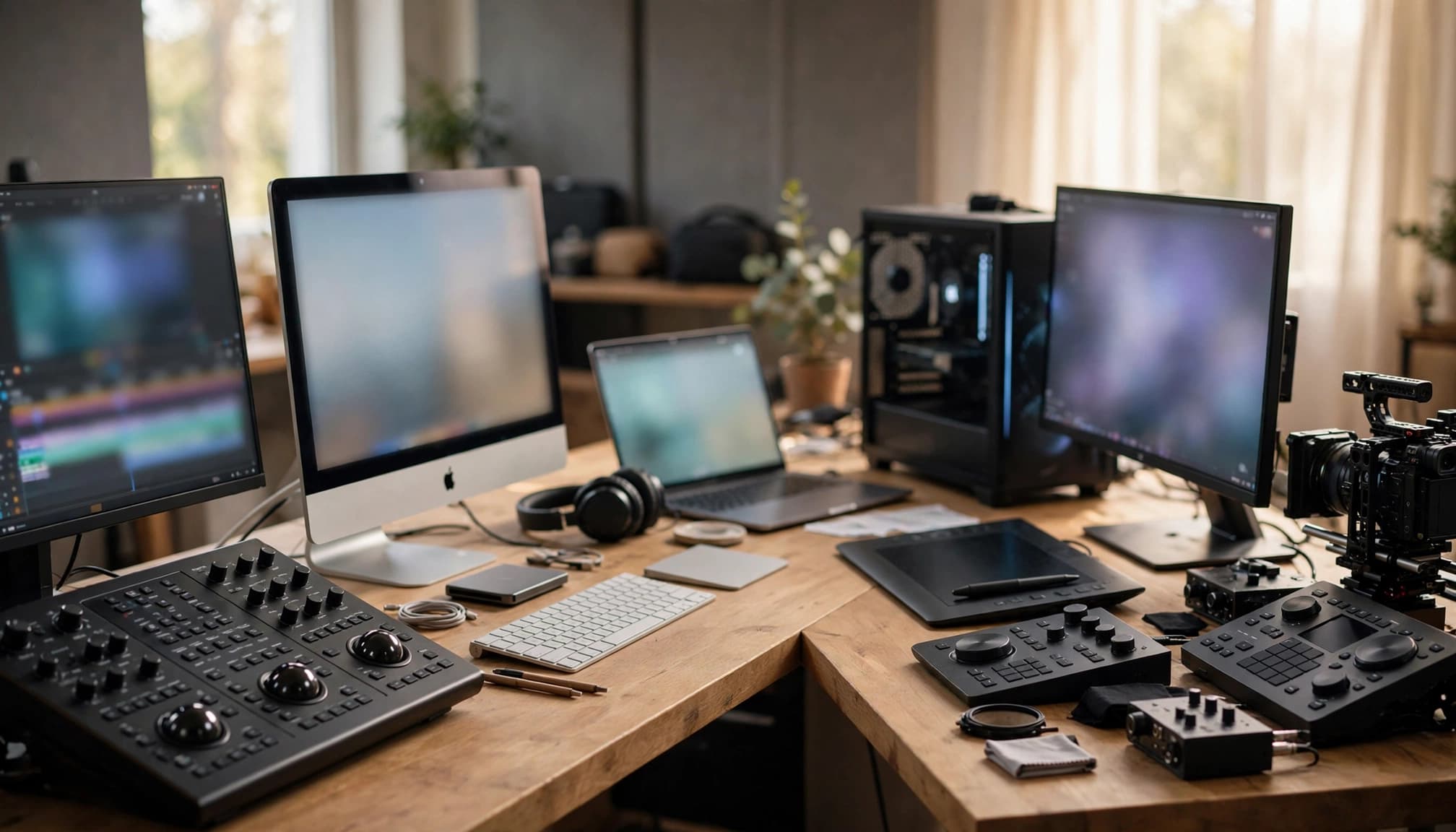
Once your channel needs cleaner audio, layered timelines, advanced color, or faster production, beginner-friendly editors may start feeling restrictive. These five options take longer to learn, but they can reduce the need to switch software as your videos become more ambitious.
Adobe Premiere Pro: Best for a Full Professional Workflow
Ready to put this into action?
Start your free journey today — no credit card required.
Premiere Pro runs on Windows and Mac and offers precise timeline control for long-form videos, interviews, tutorials, and multi-camera productions. You can send graphics to After Effects, edit images in Photoshop, and refine dialogue in Audition without rebuilding the entire project.
Captions, audio mixing, color tools, keyframes, and advanced effects give growing channels plenty of room to improve. Adobe also adds AI-assisted features, but treat them as workflow helpers rather than a reason to subscribe.
Premiere Pro uses a subscription model. Adobe's US pricing has recently shown examples such as $22.99 per month for an annual plan billed monthly, while month-to-month and team pricing differ. Prices vary by billing term, plan, bundle, and region, so confirm the current Premiere Pro plans before buying. A seven-day full-feature trial is available, but it converts to a paid plan unless canceled.
The learning curve and recurring cost may be too high for a new channel. For serious long-form creators, however, Premiere can support years of production without forcing a platform change.
DaVinci Resolve: Best Free Option for Advanced Editing and Color
DaVinci Resolve combines editing, color correction, visual effects, motion graphics, and audio in one application. It runs on Windows, Mac, and Linux, while the free desktop version is powerful enough for many YouTube channels and is not a short-term trial.
The free edition supports detailed editing and professional color work without a subscription. DaVinci Resolve Studio costs about $295 as a one-time upgrade and adds Neural Engine AI tools, extra effects, HDR features, higher-end formats, and expanded collaboration options.
Resolve is an excellent choice for creators who want professional control without monthly payments. Still, it demands more from your computer than beginner-focused editors, and its interface takes time to understand. It fits filmmakers, reviewers, gaming creators, and anyone who expects color and audio quality to matter more over time.
Final Cut Pro: Best for Mac Users Who Want Speed and Ownership
Final Cut Pro is a Mac-only editor with smooth performance, especially on Apple silicon. Its magnetic timeline, media organization, background rendering, and quick exports suit vlogs, tutorials, product reviews, and long-form videos.
Apple offers a one-time purchase option and a 90-day trial. Some creators may also access Final Cut Pro through an Apple subscription bundle, so check Apple's current pricing before choosing a plan.
The main drawback is macOS lock-in. Its magnetic timeline also feels different from Premiere Pro or Resolve, which can make switching less comfortable. Once learned, though, Final Cut Pro gives Mac creators a fast workflow without a continuing software subscription.
VEED: Best for Quick Online Editing and Captions
VEED is a web-first editor for creators who want to upload footage, add AI-assisted captions, resize videos, and publish without installing a large desktop application. Templates, basic branding tools, and quick repurposing help turn one recording into horizontal videos, Shorts, and social clips.
Free access may limit export quality, branding, AI tools, storage, or project capacity. Paid plans provide more room, but check the current restrictions before building a regular publishing workflow.
VEED works well for simple tutorials, promotional videos, and creators following YouTube Shorts affiliate marketing strategies. It is convenient, but it cannot replace a full professional timeline editor for complex projects.
CyberLink PowerDirector: Best for Fast Desktop Editing and Effects
PowerDirector is a Windows-focused desktop editor with an approachable interface, templates, keyboard shortcuts, transitions, and effects. It fits gaming channels, tutorials, family-friendly content, and videos that depend on visual effects more than advanced cinema workflows.
CyberLink offers subscription and license options, along with AI-assisted features in current versions. However, premium effects, stock assets, export options, and AI tools may depend on the plan you choose. Compare the current version's hardware requirements and export limits before buying.
PowerDirector suits creators who want more control than a browser editor without the steeper setup of Premiere Pro or Resolve. Its value comes from production speed and accessible effects, not from having the largest feature list.
Which YouTube Video Editor Is Right for Your Budget and Goals?
The right YouTube video editor is the one you can open, understand, and use consistently. Your content style and device matter more than a long feature list.
Best Picks for Beginners Who Want to Publish Quickly
If you have never edited a video, reduce the number of decisions in front of you. CapCut is a strong choice for phone users and Shorts creators, while Canva works well for branded explainers, product clips, thumbnails, and simple promotional videos. Clipchamp is practical for Windows users who want browser-based editing without installing a large program.
Filmora gives beginners a traditional desktop timeline without the steep setup of Premiere Pro or Resolve. Descript is often easier for interviews, tutorials, podcasts, and talking-head videos because you can revise the transcript instead of searching through every clip.
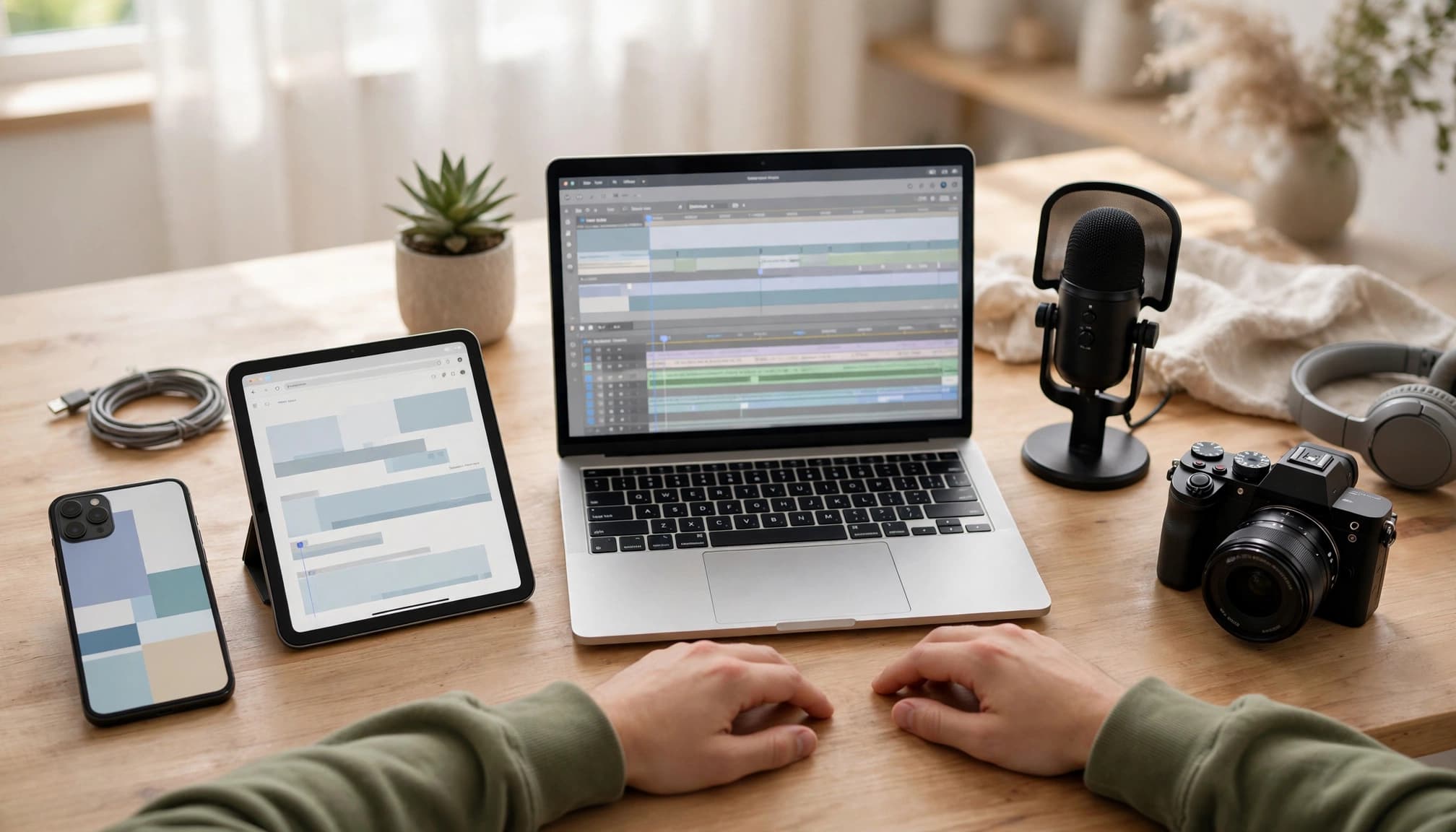
Choose one editor, learn its basic workflow, and publish several videos before reconsidering. Constant switching feels productive, but it prevents you from learning how long your own editing process takes. For affiliate channels, consistent branding and informational YouTube videos that convert usually matter more than advanced effects.
Best Picks for Long-Term Channel Growth
Move to Resolve, Premiere Pro, Final Cut Pro, or PowerDirector when your projects demand more control. Longer videos often need organized media, reusable project templates, cleaner dialogue, multiple audio tracks, captions, color correction, and faster ways to repeat common edits.
Resolve is the best fit when you want maximum free power or Linux support. Final Cut Pro suits Mac users who prefer fast performance and ownership, with Apple's current Mac listing showing a $299.99 one-time purchase. Premiere Pro fits creators who want a subscription-based professional workflow and connections to other Adobe applications. PowerDirector offers an easier transition into advanced desktop editing.
Still, expensive software cannot fix weak content. A clear idea, understandable audio, useful titles, and a reliable publishing schedule will usually improve a channel more than another effects pack. Upgrade when your current editor slows down a specific task, not simply because another program looks more professional.
A Simple YouTube Editing Workflow for Your First Videos
A repeatable workflow helps you finish videos without getting lost in effects, plugins, or new AI features. Start with a clear folder structure, edit for viewer clarity, and save settings you can reuse.
Export Settings That Work for Most YouTube Videos
For regular YouTube videos, use a 16:9 landscape timeline. A 1920 x 1080 export is a practical choice for most beginners because it looks sharp, uploads reasonably quickly, and works well on standard screens. Choose 4K when your original footage is 4K, and your computer can handle the larger files. You don't need to export every video in 4K automatically.
For Shorts, create a 9:16 vertical project, usually 1080 x 1920. Keep the frame rate matched to your original recording, such as 30 fps or 60 fps. Converting a 24 fps recording to 60 fps won't create smoother source footage and may cause unwanted motion.
A dependable export baseline looks like this:
- Use an MP4 container with H.264 video.
- Keep the original frame rate.
- Choose 1080p for most projects, or 4K when it fits your footage and computer.
- Use variable bitrate when your editor offers it, with a moderate setting for 1080p and a higher setting for 4K.
- Export audio as AAC, with a clear voice that never reaches the clipping zone.
- Keep music well below speech so viewers can understand every sentence.

Before publishing, check YouTube's current upload encoding recommendations. YouTube can update supported formats, bitrate guidance, and processing rules.
Editing Habits That Save Time and Improve Viewer Retention
Create folders for Footage, Audio, B-roll, Music, Graphics, and Exports. Name files with the date and topic, then back up the project and original footage before making major changes. Keyboard shortcuts for cutting, trimming, undoing, and playback can save minutes on every video.
Start with a rough cut that removes mistakes, long pauses, repeated points, and sections that don't support the video's promise. Then improve the audio, add relevant B-roll, and create accurate captions. Check music licensing before using a track, even if it came from a free library.
Your opening deserves extra attention. State the problem, result, or question quickly, then review the first 30 seconds before exporting. If the video takes too long to reach its point, viewers may leave before the useful information begins.
Watch the complete exported file on your computer and phone. Check captions, audio, framing, spelling, cuts, and music levels. Finally, save a project template with your intro style, caption settings, audio adjustments, and export preset.
A single recording can support a long-form video and several Shorts. Pull out one useful tip or strong example for each vertical clip, then add captions and a fresh opening. This video repurposing workflow can also produce material for a blog, email, or affiliate promotion.
After publishing, study audience retention, especially the first 30 seconds. Improve one editing habit at a time instead of chasing every new AI feature. Consistent, understandable videos usually teach you more than constant software switching.
Frequently Asked Questions
Choosing an editor becomes easier when you match the software to your device, content style, and publishing routine. These answers address common concerns that still come up after comparing the leading YouTube video editing programs.
What is the best free video editing software for YouTube beginners?
The best free option depends on your device and video style. CapCut is usually the easiest starting point for mobile creators, Shorts, captions, templates, and fast edits. Clipchamp is a practical browser and Windows choice for simple projects, while its free plan supports unlimited exports up to 1080p without a watermark.
DaVinci Resolve offers the most editing power of the three, including advanced color, audio, and timeline tools. However, it has a steeper learning curve and needs a capable computer. Free plans can also limit premium assets, AI features, storage, or export options, so check the current terms before building your entire workflow around one tool.
Can I edit YouTube videos on my phone?
Yes, mobile editing is practical for Shorts, tutorials, vlogs, and simple long-form videos. CapCut offers an accessible phone-first workflow, while Canva works well for branded clips, promotional content, graphics, and template-based projects.
A desktop editor becomes more useful when your files are large or your timeline contains many video and audio layers. You will also benefit from a larger screen for detailed audio cleanup, color correction, multicamera edits, and precise trimming. If your phone struggles with storage or heat, transfer footage before starting a larger project.
Do YouTube editing programs add watermarks?
Watermarks depend on the software plan, export settings, trial status, and assets used in the project. Clipchamp's free plan currently supports watermark-free exports up to 1080p, while Canva Free can add watermarks when you use premium elements. CapCut may apply restrictions when a project includes Pro templates, effects, or stock content.
Before editing a full video, export a short test using the same settings and assets. Check the final file for a watermark, reduced resolution, missing features, or blocked export, then review the editor's current pricing and terms.
Is expensive editing software necessary to grow a YouTube channel?
No. Clear audio, useful information, strong pacing, readable thumbnails, accurate titles, and consistent publishing usually matter more to a new channel than expensive effects or advanced color tools.
Paid software can still save time when you edit several videos each week, manage complex timelines, or need professional audio and color controls. Upgrade when your current editor blocks a specific task, not because a more expensive interface looks impressive. YouTube also provides creator resources and channel guidance for planning and improving your content.
Should I use AI features in my video editor?
AI tools can help beginners create captions, edit from transcripts, remove long silences, clean background noise, resize videos, and turn longer recordings into Shorts. These features are useful when they remove repetitive work without changing your message.
Always review the result yourself. AI can mishear names, create incorrect captions, cut natural pauses, remove important context, or suggest clips that use copyrighted material. Keep your own judgment and speaking style in the final edit.
How often should I change my video editing software?
Stay with one editor long enough to build a repeatable workflow. Switching every few weeks can make you relearn shortcuts, export settings, project organization, and caption tools instead of improving your videos.
Consider changing when your current software lacks a feature you genuinely need, performs poorly on your device, becomes too expensive, or no longer fits your channel style. Otherwise, create templates and improve your editing habits within the tool you already understand.
Wrapping Up
The best video editing software for YouTube in 2026 depends on your current needs, not the longest feature list. CapCut, Canva, Clipchamp, Filmora, and Descript are practical starting points for beginners who want simple workflows, fast publishing, branded content, or transcript-based editing. Resolve, Premiere Pro, Final Cut Pro, VEED, and PowerDirector fit creators who need more specialized tools or advanced production control.
Your device, budget, video style, and editing experience should guide the decision. Choose software that helps you produce clear videos with strong audio, readable captions, useful visuals, and consistent pacing. These beginner video content tools can help you start without waiting for perfect equipment or advanced skills.
Pick the editor that fits your situation, make your first video, and improve through practice. The right software is the one you can use consistently as your channel grows.
Share this insight
This conversation is happening inside the community.
Join free to continue it.The Internet Changed. Now It Is Time to Build Differently.
If this article resonated, the next step is learning how to apply it. Inside Wealthy Affiliate, we break this down into practical steps you can use to build a real online business.
No credit card. Instant access.