How I Upload My Books to Amazon KDP (And How You Can Too Step by Step)


Published on July 12, 2025
Published on Wealthy Affiliate — a platform for building real online businesses with modern training and AI.

How I Upload My Books to Amazon KDP (And How You Can Too Step by Step)
So, I taught myself how to do all this.
Every time I looked for a guide or some help online, it felt like someone wanted big cash just to show me the basics.
So I did what I always do I researched, I tried things, I made mistakes, I asked ChatGPT…
And now, here we are. Eleven books later, earning every single month from Amazon.
Am I rich from it? Not yet.
But the royalties come in consistently. And now it’s just about getting those numbers up and that’ll come with time, smarter strategy, and more books.
I know this is all written out in blog form not a slick vlog with fancy editing but honestly, I’m still learning.
And I’m just putting in my part to give back to a community that helped me and if this helps even one person who's struggling, that makes my day.
Mel’s got decades in this game and I really enjoy his stuff. This blog builds on what he teaches and honestly, I hope he drops one like this in blog form too, just to balance the scale haha.
And I’ve been doing this entire journey on nothing but an Acer laptop and an iPhone 14. Not exactly top-tier equipment, but it works. And that’s all I need.
💬 I wish someone had shown me this a year ago.
But hey I made it through.
Same old laptop. Still kickin’. Still publishing.
Let’s get you going too.
Let’s publish your book together and get you on your way to earning.
Step 1: Log In and Click “+ Create”
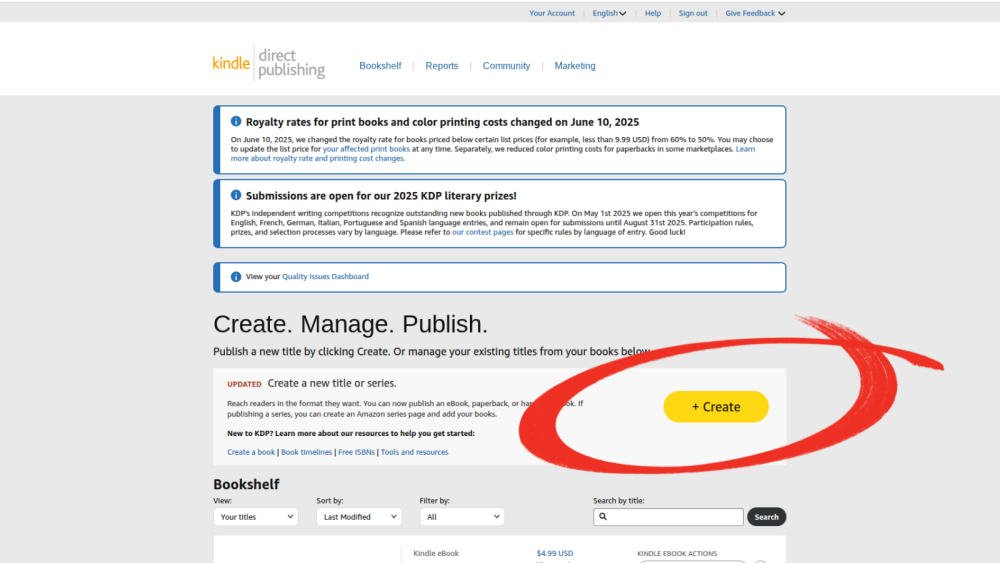
If you already have an account, just log in. But if you don’t, no worries it’s completely free to sign up. Just follow the steps to create your Kindle Direct Publishing (KDP) account and you’re good to go.
Important tip: Amazon doesn’t allow multiple KDP accounts under the same person or business. If you try to create more than one, you could risk being removed from the platform entirely so stick with one and keep it clean.
Actually, Mel Waller has a full vlog on this first part that breaks it down step by step from creating the account to understanding the dashboard. If you're brand new, it’s worth checking out: 👉 Mel's KDP Setup Vlog
Once you’re in your dashboard, hit the big yellow “+ Create” button.
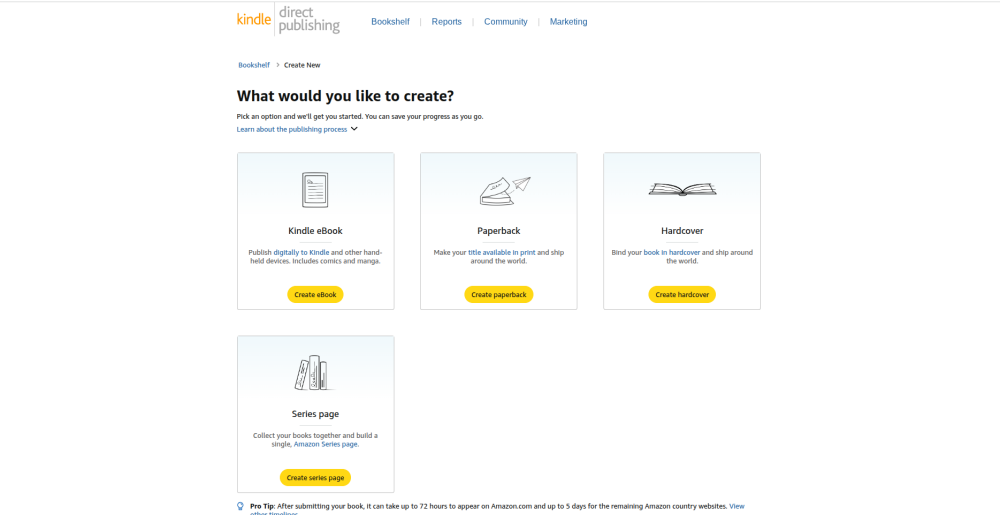
You’ll see a few options:
- Kindle eBook
- Paperback
- Hardcover
- Series Page
Start with Kindle eBook you can come back for the print version after.
Step 2: Fill Out Your Book Details
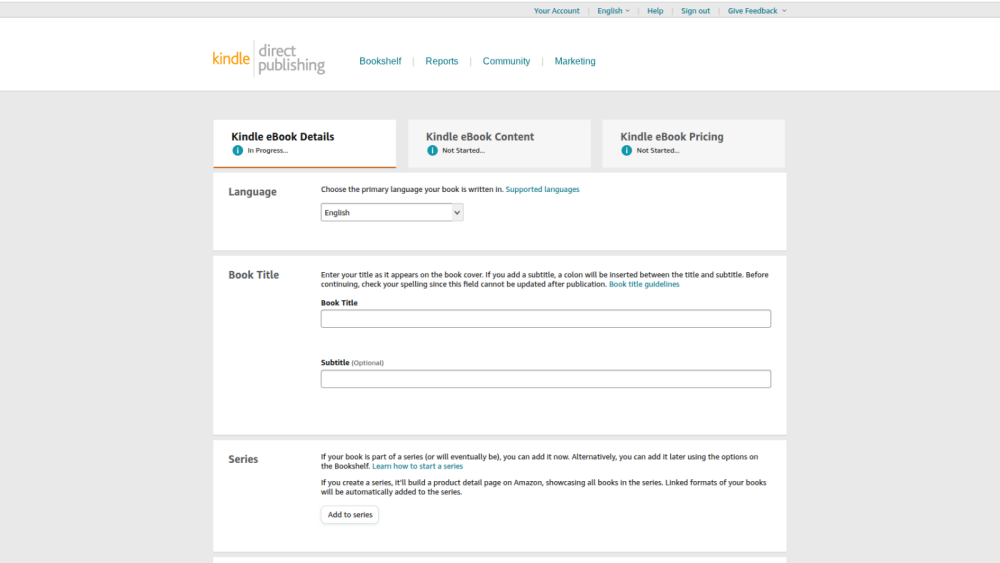
This is where you give Amazon the basics. Here’s what I fill out but you pick what fits you. I’m just using what works for me:
- Language: English
- Book Title & Subtitle: Match what’s on your cover
- Series (optional): If part of a series
- Edition Number: If it's an update
- Author: (I use Shawn Thomas) you're welcome to use my name too.
- Contributors: Optional
- Book Description: Make this strong it sells the book
- Publishing Rights: I select “I own the copyright”
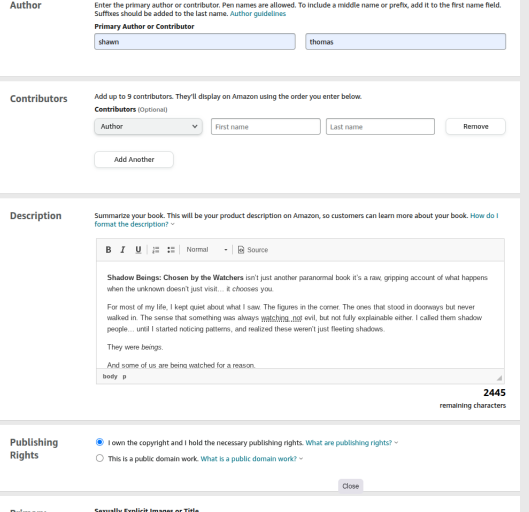
Categories:
This is where you’ll help Amazon figure out where your book fits. You can pick up to three categories that define your book best. Start broad, then go deep. Instead of just "Spirituality" or "Fiction," drill into subcategories that match your topic.
I use:
- Religion & Spirituality → Spiritual Growth
- Mystery, Thriller & Suspense → Paranormal → General
- Religion & Spirituality → Occult → Ghosts & Haunted Houses
Use the search and expand the folders until you find the ones that fit your book best.
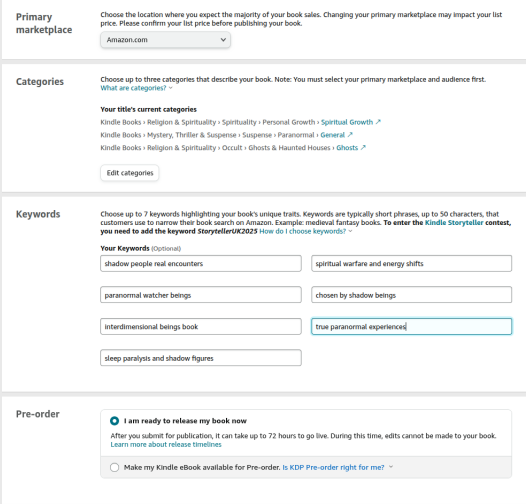
Keywords:
You get 7 total. Use phrases a reader might type into Amazon when looking for your kind of book. Here’s what I added to one of mine:
- shadow people real encounters
- interdimensional beings book
- paranormal watcher beings
- spiritual warfare and energy shifts
- sleep paralysis and shadow figures
- true paranormal experiences
- chosen by shadow beings
Use full phrases, not just one-word terms. Think like a reader.
Pre-Order Option:
Ready to put this into action?
Start your free journey today — no credit card required.
This is where you choose whether to release now or set a future release date. If you’re ready, pick “I’m ready to release my book now.” If not, choose pre-order to build anticipation.
Then click Save and Continue.
Step 3: Upload Your Manuscript and Cover
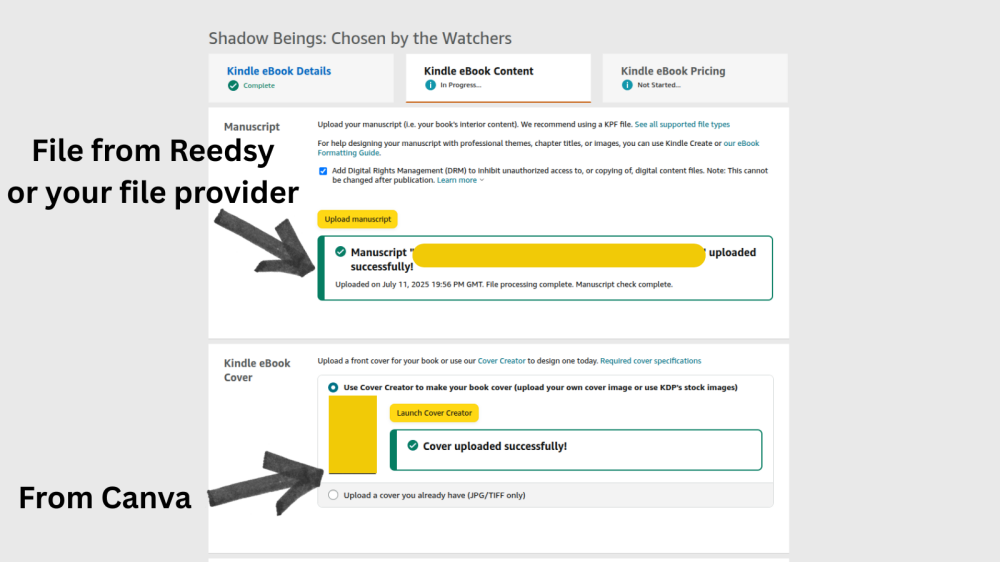
This is the Content tab the heart of the upload process. This is where you give Amazon the files that make your book real: the interior, the cover, and your publishing permissions.
✅ Manuscript:
I upload an EPUB file exported from Reedsy. You can also use DOCX or KPF formats depending on how you built your book.
📌 Quick Note: Amazon doesn’t let you edit the content inside KDP once it's uploaded. So make sure your file is finalized formatting clean, chapters correct, no typos. If you find anything off after upload, you’ll need to go back to your source file (like Reedsy or Word), make the changes there, and reupload.
✅ Cover:
I upload a JPG cover made in Canva. You can also use KDP’s Cover Creator tool, which lets you build a cover from templates or upload your own image.
Just make sure your cover meets Amazon's size and resolution requirements. If it's blurry or misaligned, it'll cause a delay in publishing.
✅ DRM:
I check DRM ON this adds a layer of protection so people can’t easily copy or redistribute your ebook. That said, this is totally optional. If you want your book to be easily shareable or widely accessible without restriction, you can leave DRM off. Just decide what fits your goals.
Step 4: Answer AI Disclosure Questions
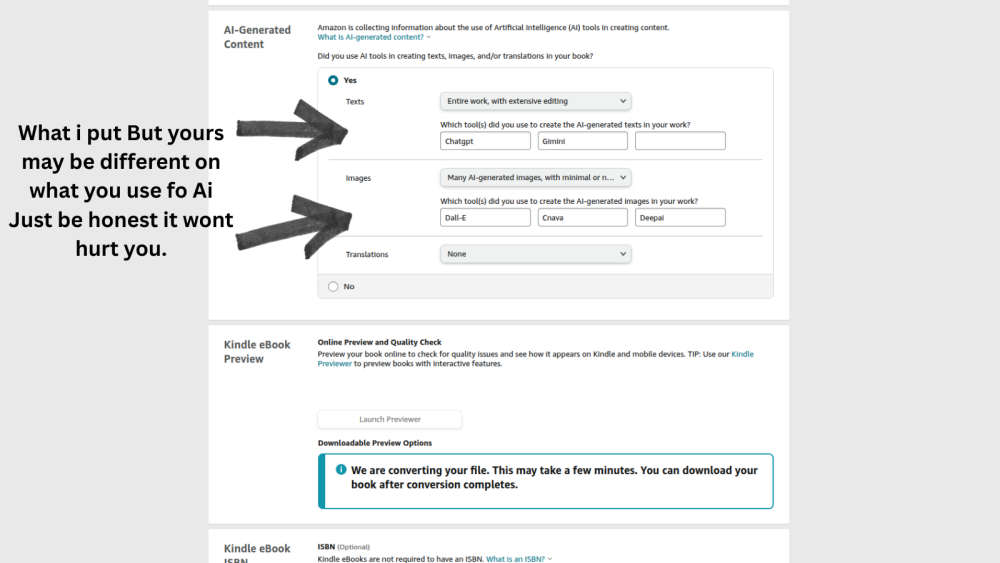
Amazon now asks whether you used AI tools during the creation of your book including writing, images, or translation. This isn’t about punishment it’s about being transparent with readers and keeping your publishing account compliant.
Here’s how I answer:
- Text: Yes I used ChatGPT and Gemini for idea generation and outlining, but I rewrote and refined everything myself before publishing.
- Images: Yes I used DALL·E, DeepAI, and Canva to create cover images and promo visuals.
- Translation: No I didn’t use any AI translation tools.
Why Amazon asks:
They want to maintain trust in the publishing process. AI is a tool, not a shortcut and as long as you're upfront about how you use it, you're good to go. Whether you used it a little or a lot, just be honest.
If you didn’t use AI at all, just select “No” for each option and continue. Simple and quick but worth doing right.
Step 5: Preview Everything
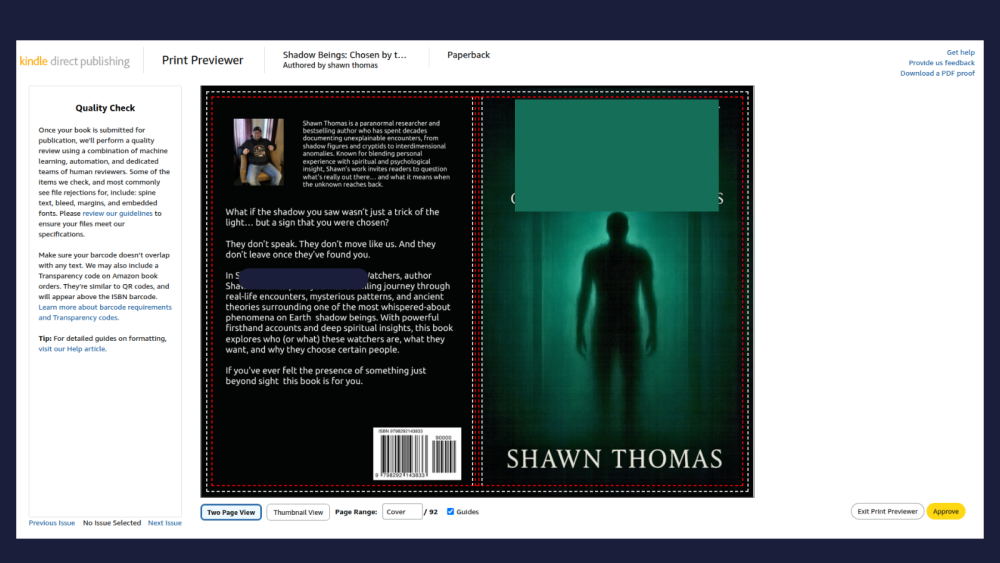
Amazon auto-checks for formatting or errors.
Then launch the Kindle Previewer:
- Check spacing, chapters, layout
- Make sure the cover aligns
- Fix anything weird
Important Tip: If you see something that needs to be fixed maybe a chapter title looks off, spacing is weird, or an image isn’t right you’ll need to fix that in the original file you uploaded. For me, that’s Reedsy. For you, it might be Google Docs, Word, or wherever you built your book.
Make your edits in that original file first, then re-export and upload the corrected version to KDP. Always best to get your layout solid before hitting publish.
Then hit Save and Continue.
Step 6: Pricing and Royalties
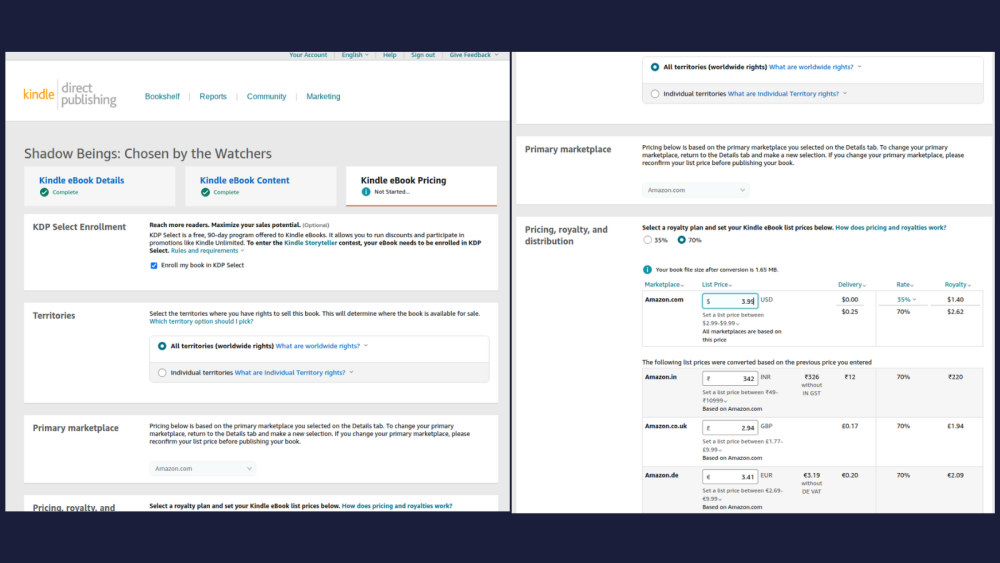
Here’s where you decide how much you earn.
You’ll choose between two royalty options:
- 35% royalty This gives you more pricing flexibility. You can list your book as low as $0.99 or above $9.99. Amazon offers this to support books that might be priced low due to niche demand, international market strategies, or author preference for reach over profit.
- 70% royalty This option offers higher payout but has stricter rules. Your book must be priced between $2.99 and $9.99, and Amazon takes a small delivery fee based on file size (usually around $0.10–$0.25).
🤔 Why does Amazon offer both?
Because not all books have the same goal. Some authors want exposure, some want earnings. The 35% royalty allows flexibility on pricing to reach different markets, while the 70% royalty rewards authors who hit the pricing sweet spot with better per-sale payouts.
💵 Why I Pick 70%
I’m focused on building steady monthly royalties. The 70% royalty makes sense for me because most of my books are around $3.99 a fair price for readers, and enough to return a good cut. At that price, I earn $2.62 per sale after Amazon’s $0.25 delivery fee.
Your USD price will auto-convert to global stores like the UK, India, Germany, etc.
Once set, hit Publish Your Kindle eBook.
You’re Officially a Published Author
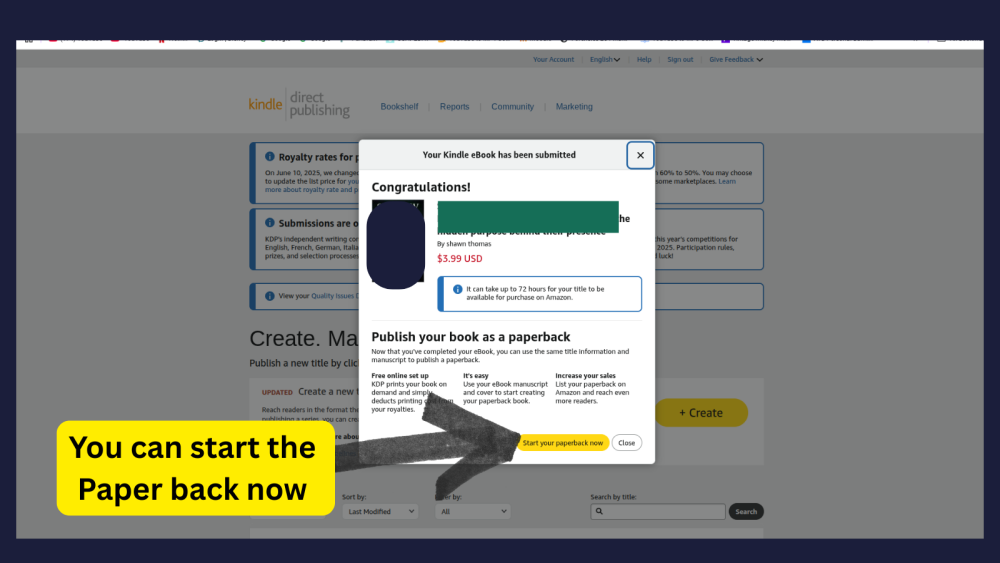
That’s it your book’s in review.
Amazon says it could take up to 72 hours
But for me, it’s usually live within 24.
Next steps?
- Watch your email
- Share your Amazon link
- Come back and upload your paperback when ready
Final Thoughts
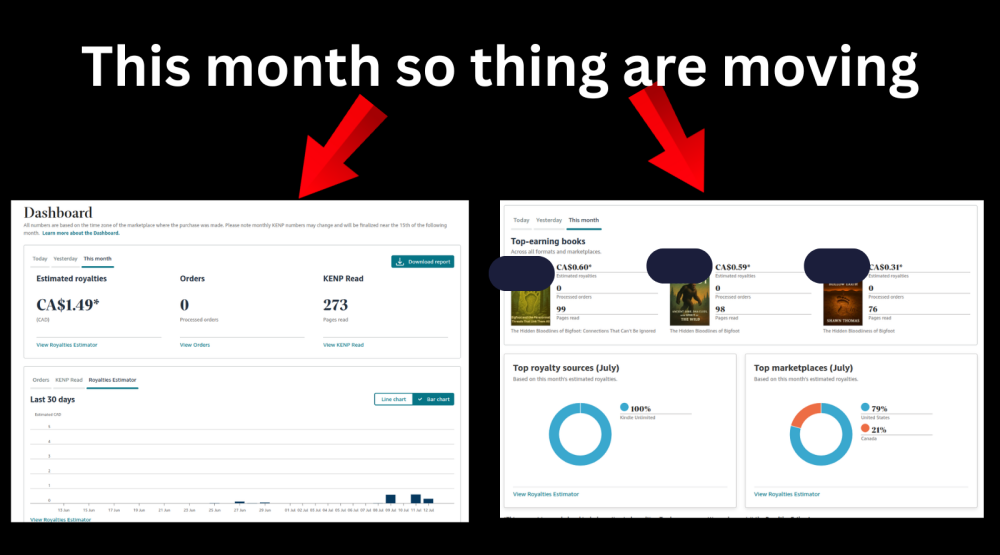
Now to prove this process works I’m going to drop what this account has made so far.
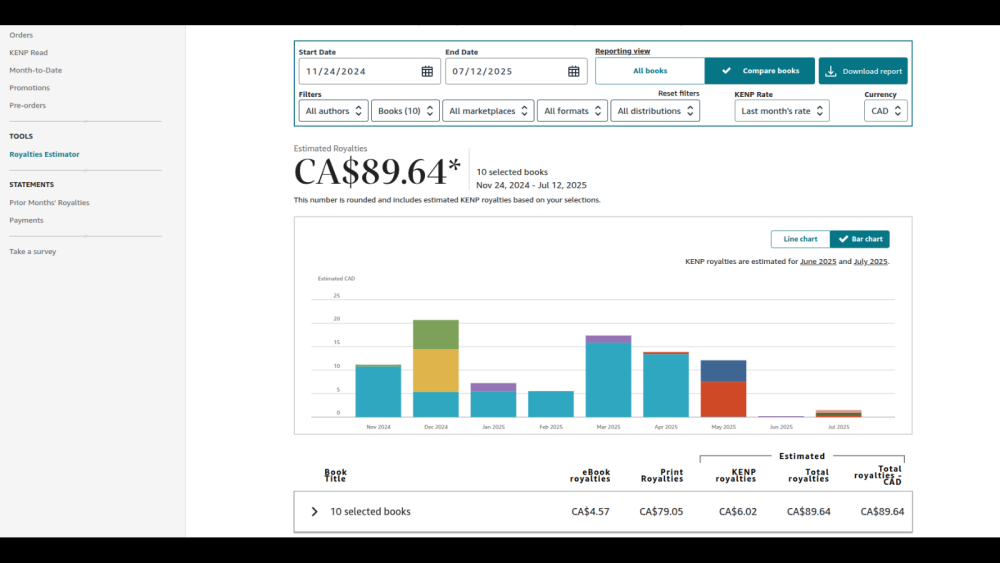
It’s not life-changing money yet, but it’s real. And the cool part? I’ve done it all using free tools. No paid programs, no special connections just time, effort, and learning along the way.
Now that I’ve got my full foundation in place, my next phase is ads. I’ve been wanting to test Amazon ads for a while now… honestly, for most of the past year. But for now, I’ve just kicked off a Pinterest ad campaign running for 10 days to promote my book library. So we’ll see what kind of traction that brings. Who knows maybe that’s the missing key. Time will tell.
But at the end of the day, this is the full meal deal of how I make books for free, and how you can too.
I didn’t take a course.
Didn’t have a mentor.
Didn’t have fancy gear.
Just trial, error, grit, and ChatGPT.
If you’re trying to build something real, something you own, then publishing books works.
No big costs. No gatekeepers. Just start.
If this helped you, let me know.
If you’re stuck, I’ll help where I can.
And if you’re still thinking about publishing…
This is your sign.
👣 Stay wild,
Shawn Thomas
Share this insight
This conversation is happening inside the community.
Join free to continue it.The Internet Changed. Now It Is Time to Build Differently.
If this article resonated, the next step is learning how to apply it. Inside Wealthy Affiliate, we break this down into practical steps you can use to build a real online business.
No credit card. Instant access.