I Tried Bing Free Image Creator


Published on May 12, 2026
Published on Wealthy Affiliate — a platform for building real online businesses with modern training and AI.

Hello Everyone
I recently discovered Bing's free AI image creator and I ended up trying it out. The results were surprising but for a free tool I didn't expect much.
Today I wanted to share the results with you and explain how it works in case you want to try it out yourself.
Let's dive in
Why I Needed An Image
Early yesterday morning I need an image for a Facebook post. I wanted to post some Monday motivation for my Facebook friends.
This is something I did last Monday for the first time, and I wanted to do it again this week.
The motivation I wanted to share this week was my favourite Albert Einstein quote.
"Life is liking riding a bicycle. To keep your balance, you must keep moving".
I really like that quote, and I thought it would make some good Monday motivation for my Facebook friends.
I wanted an image to go along with it and the quote written on the image. I looked on the internet at my usual sources, but I couldn't find what I needed from my usual sources.
So, I decided I'd create on. But I didn't want to use Canva as I wanted to get it done fast this time and seeing as it was for my friends the image didn't have to be perfect.
I stumbled up Bing Image Creator by chance. Until then I didn't even know it existed. I've used Microsoft Copilot to generate images before, but I didn't know about this web browser-based tool.
So, I thought it will do and I'll give it a try and that's exactly what I did.
How Bing Image Creator Works
Before I show you my results, I want to explain how Bing Image Creator works. The tool I used is called Free AI Image Generator and it's located in a tool called Bing Image Creator.
It's web based and works in your web browser. It's available globally except in Russia and China. It's free to use for anyone with a Microsoft account.
I used Bing daily, so I was already signed in. But if you don't and you want to try this tool simply login with your Microsoft account.
If you don't already have one, it's free to create one. You don't need any paid upgrades to your account as this is a free tool so once you have a Microsoft account, you're good to go.
The Interface
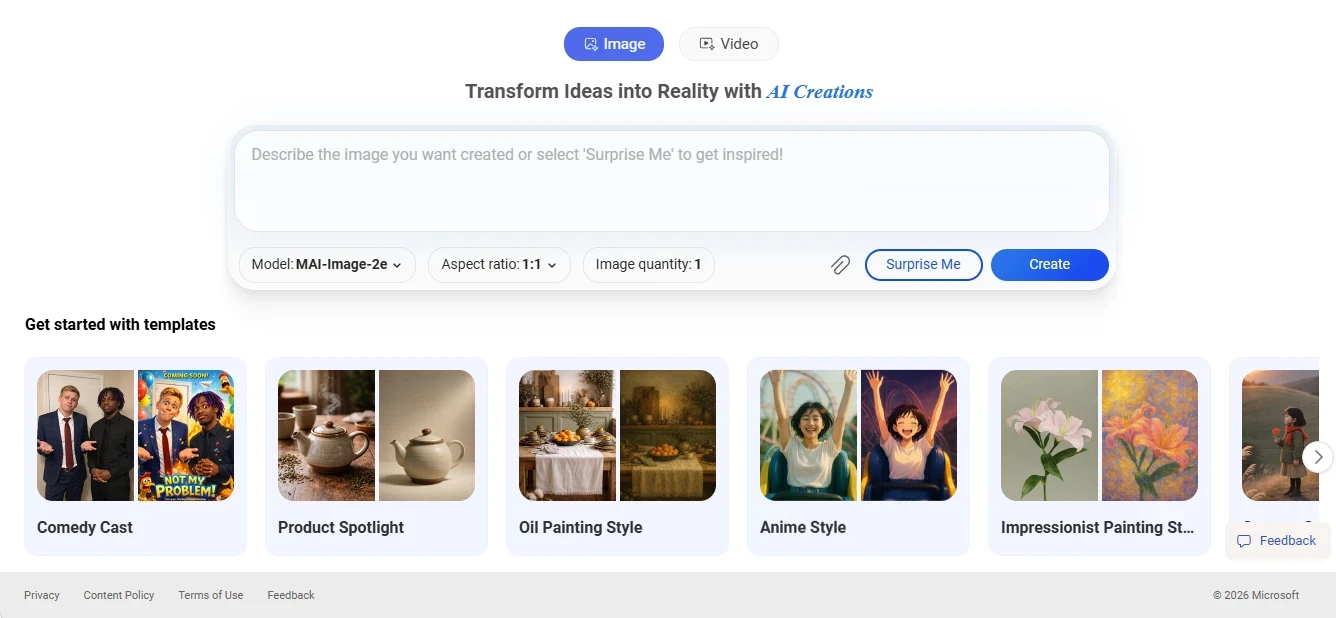
The UI is pretty simple on Bing Image Creator.
At the top is where you type your prompt and choose your settings.
Underneath that you have a bunch of templates to choose from if you want to use them and a place to leave feedback.
But that's it. It's pretty basic but it works.
The Settings Explained
Bing Image Creator has limited and basic settings but at least it has some.
You can select from 3 models which are
- MAI-Image-2e
- DALL-E 3
- GPT-4o
And you can also select from 3 different aspect ratios which are
- 1:1 [Square]
- 3:2 [Horizontal]
- 2:3 [Vertical]
I used 3:2 [Horizontal for my images as it was for a Facebook post.
You also have Image Quantity which is set to 1 and there is no option to change this. So, this means you can only generate 1 image each time as you click create.
Next to that you'll see a paper clip icon. This is for uploading an image from your computer. This will allow you to use Bing Image Creator to enhance, remix or reimagine your images with AI.
I haven't tried this yet but it's nice to have.
Finally next to the create button you have a button that says Surprise Me. If you click that AI instantly creates a prompt for you of something random and inserts it in the text box.
You can then click create to generate an image with the prompt it gave you.
Other Things You Should Know
A few other things you'll find in Bing Image Creator are Templates which are for creating different types of images such as Comedy Cast, Product Spotlight, Oil Painting, Anime Style etc.
There are 21 templates to choose from in total.
If you scroll down a bit after templates, you'll see an area to explore ideas. This is where you can view images and videos created using Bing Image Creator.
If you hover over an image or video, you can see the prompt that was used to create it.
In the same area you can also click My Creations which allows you access anything you've created with Bing Image Creator.
Finally, if you scroll down passed that you'll see an FAQ section below it and to the right-hand side of the UI you'll find a help button which loads the FAQ if you click it and a Feedback button that brings up a small popup that allows you to send feedback to Microsoft about Bing Image Creator..
There is also an option to generate videos with the tool and that's called Bing Video creator. You can generate short 8 second videos with it.
I haven't tried that yet but it's something I might try in the future.
As you can see it's pretty basic, but it works for what it is. Bing Image Creator isn't meant to be anything outstanding. It's a free tool so it's good as you'd expect. So don't expect anything spectacular or super high quality from this tool.
The Prompts & Images
Now that you know how the tool works and what you can do with it I'm going to share my results with you including the prompts I used and the images I got as a result.
I got to work and typed a short prompt explaining what I needed and hit enter. About 30 seconds later I had an image, but it wasn't good enough.
Image 1
The prompt I used was as follows
Create a simple but nice-looking image with the Albert Einstein quote "Life is like riding a bicycle. To keep your balance, you must keep moving". Include a relevant background that blends in nicely with the quote.
And this is the image I got
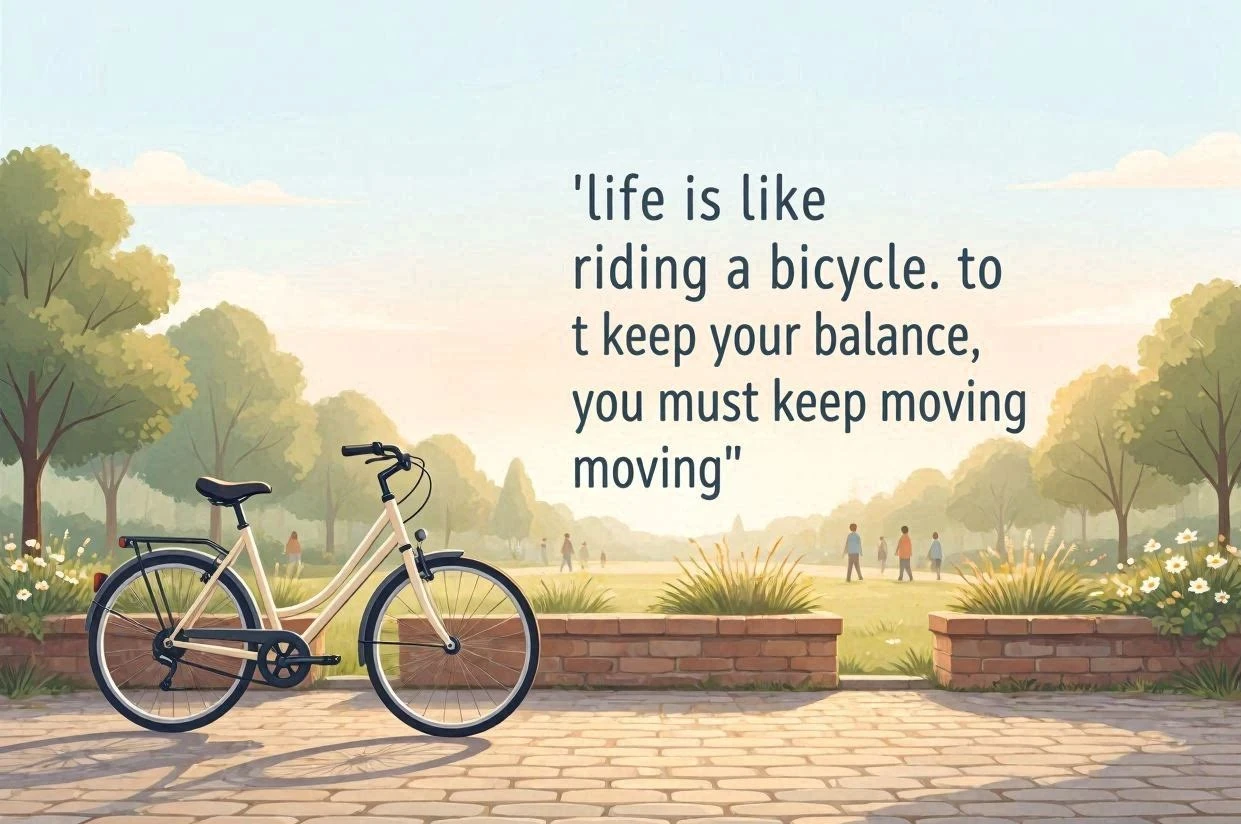
As you can see it's not bad, but it has one big problem. There is a spelling mistake, and nothing is capitalized.
So, I went and asked the tool to edit it, and I also asked it to add Albert Einstein's name below the quote, so people know it was written by him.
Image 2
The prompt I used was as follows
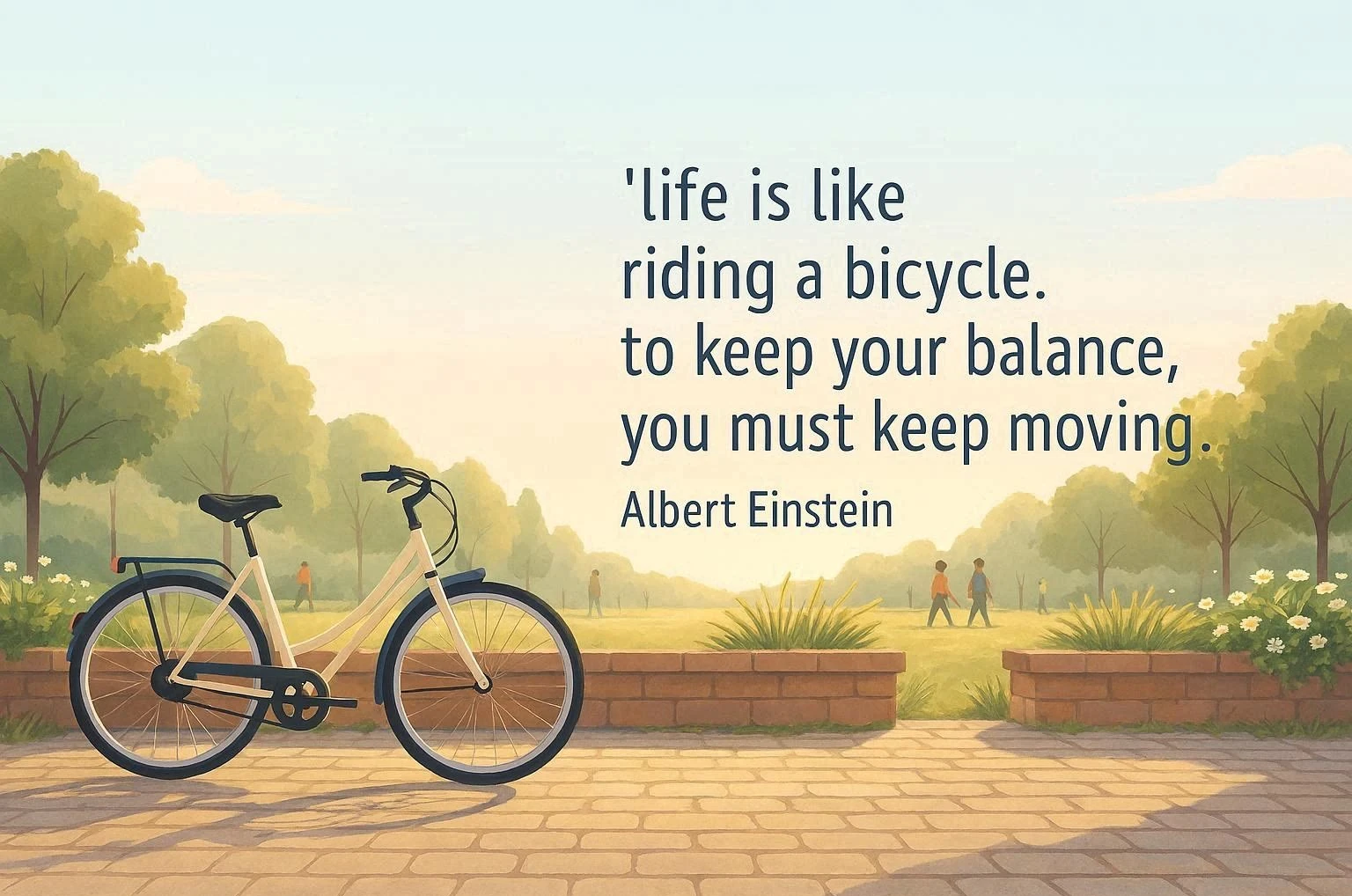
Remove the t after to and add Albert Einstein's name underneath the quote so people know it came from him.
And this is the image I got
Ready to put this into action?
Start your free journey today — no credit card required.
As you can see it did what I wanted and it worked this time. The image was better, but it seems a bit animation like to me and I wanted something better.
So, I decided to start over with a different prompt and this time I selected the GPT 4o model and it worked out better.
Image 3
The prompt I used was as follows
Create a simple but nice-looking image with the Albert Einstein quote "Life is like riding a bicycle. To keep your balance, you must keep moving". Include a relevant background that blends in nicely with the quote. Add the name Albert Einstein underneath the quote so people know it was written by him.
And this is the image I got
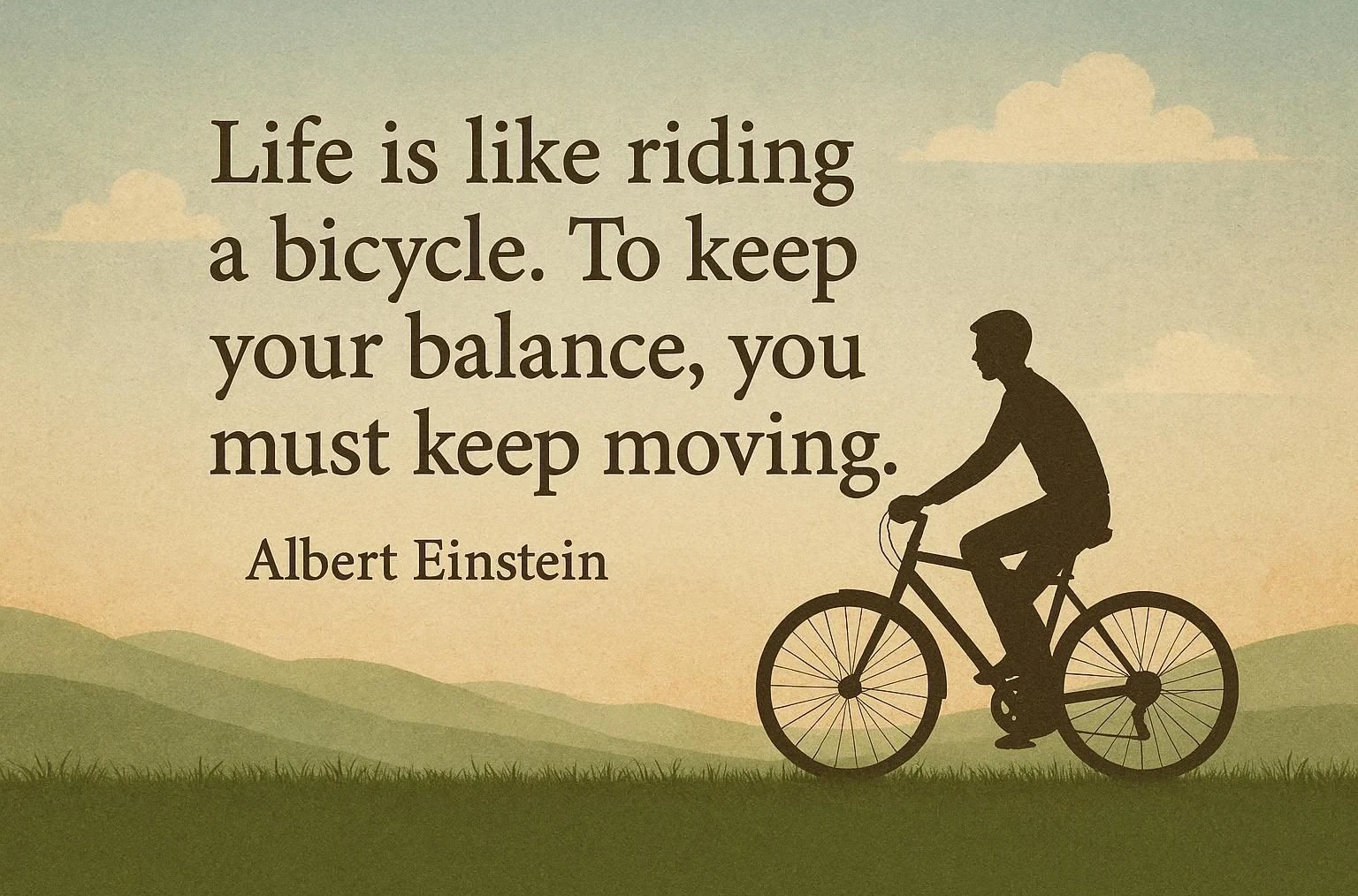
As you can see it's much better this time. I know it's not as cartoon like but it's what I wanted. I wanted something basic without looking like it was from a cartoon or anime.
This time I got what I wanted and selecting a different model was definitely a good decision.
I know I could have made something on Canva quite quickly, but I wanted to use AI to save time as this wasn't for business use.
And this third image is what I ended up using and I went ahead and published my Facebook post using that image.
My Complete Facebook Post
In case you're wondering this is what my Facebook post looked like in the end
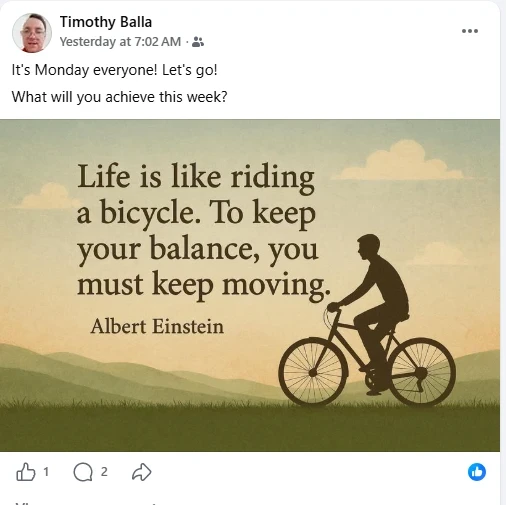
As you can see it was pretty basic and nothing more than a simple post to give my friends some motivation for the week.
Someone liked it and commented so it did its job and I'm happy with the outcome even though it was basic.
Other Tests & Experiments
I opened Bing Image Creator this morning to check a few things while I was writing this blog post.
So, I decided to do a couple of other tests for fun while I was there and include the results in this blog post.
I tried out the Surprise Me feature and I also tried creating another image using my own prompt.
Surprise Me Feature
I clicked surprise me and this is the prompt AI generated for me
Granular oil painting, astronaut running on it, the ground covered with colorful flowers, light blue, light pink, light green, fresh and natural, Hayao Miyazaki.
And this is the image I got
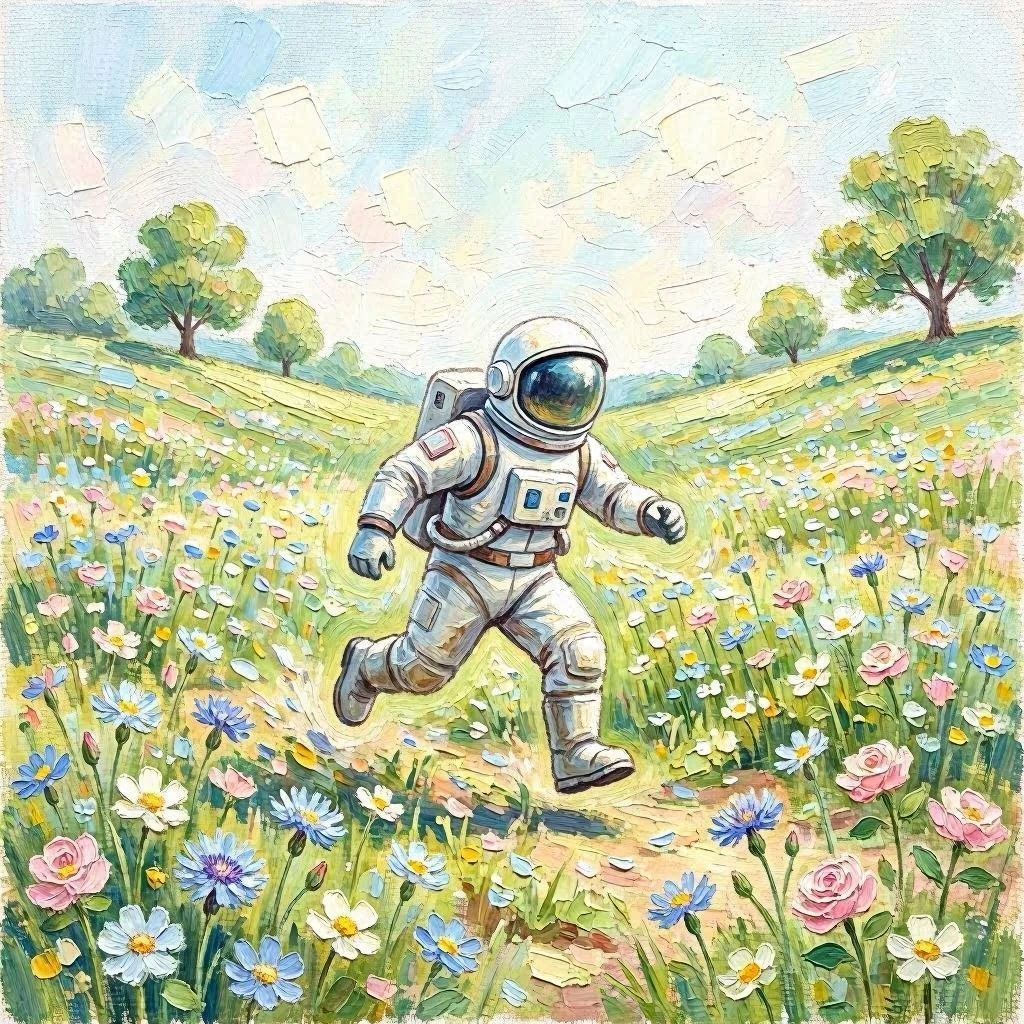
As you can see it's a nice-looking image. It actually surprised me but it's still pretty basic.
For this one I left the settings at default which were the model MAI-Image-2e and the aspect ratio was 1:1 [square].
It's not a bad image and might come in handy for something one day and it's not bad for a free tool.
Wealthy Affiliate Image
I wanted to try creating another image using my own prompt.
So, I decided to create an image about Wealthy Affiliate.
I changed the settings this time. I used the model GPT-4o and selected the aspect ratio 3:2 [Horizontal].
I wrote my own prompt and generated an image.
This is the prompt I used
Create an image showcasing the online business platform Wealthy Affiliate. Include elements that represent online business such as a laptop and a web icon. State that Wealthy Affiliate allows you to build your own online business in any niche of your choice starting today. Make the image exciting and inspiring but avoid anything salesy and don't make it look like it was created by a scammer or fake guru.
And this is the image I got
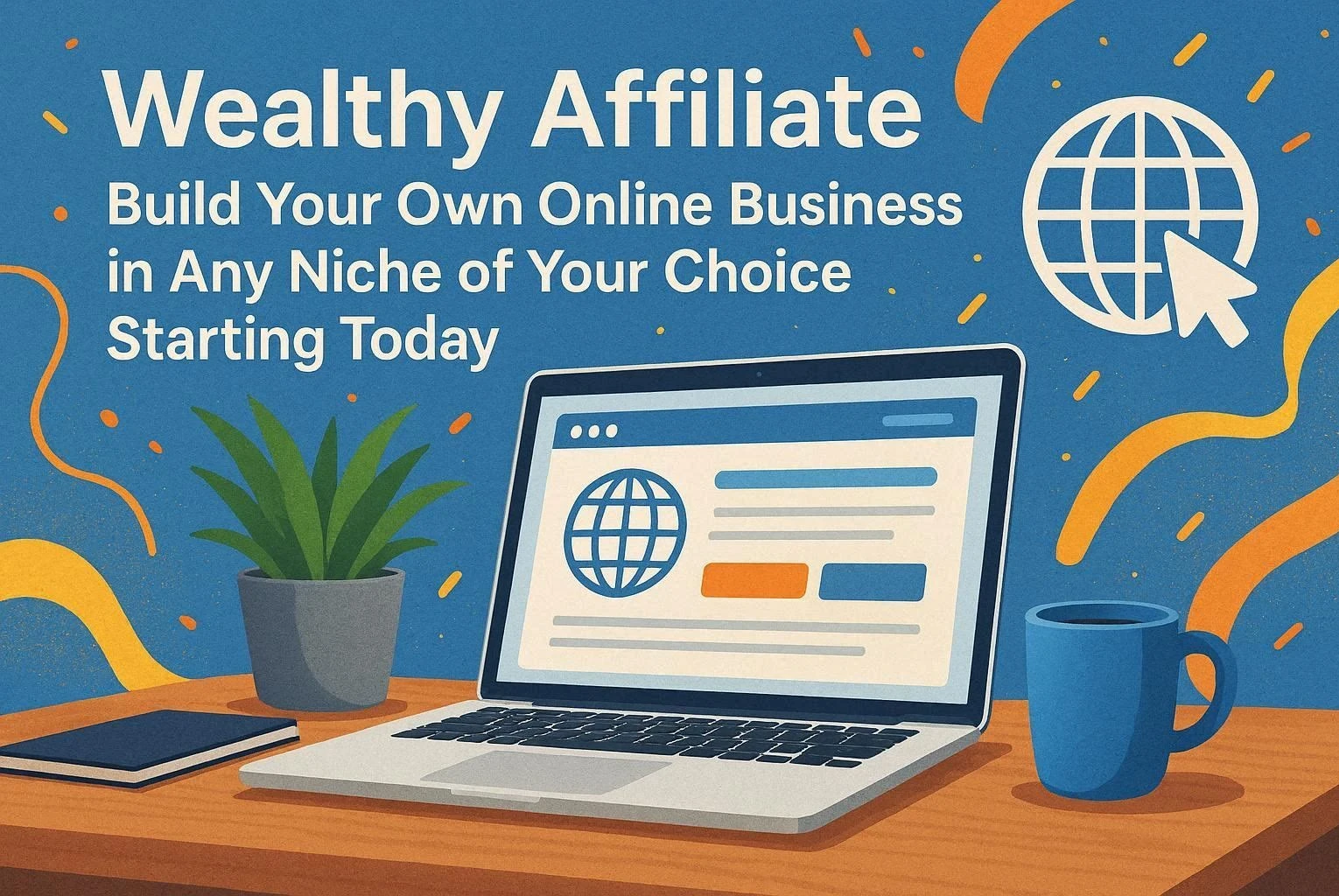
As you can see it's basic, but it gave me what I asked for. I was expecting something better due to the model I chose but at least it gave me what I asked for.
The elements are all relevant and the colours aren't flashy. It's kind of the style I was going for but just too basic.
I was expecting a bit better than what I got but I'm not surprised given it's a free tool.
That was all the tests and experiments I did with Bing Image Creator today, but I might return to it for further testing in the future.
WA Images Studio Experiment
Before I finished experimenting with images for today, I wanted to do one more thing.
The whole time I was using Bing Image Creator yesterday and today I kept thinking WA Image Studio would beat this by a mile.
So, I wanted to try it using the same prompts and prove it.
I opened up WA Image studio and got to work.
I created 3 images in WA Image Studio. I made my bicycle quote image, the oil painting with the astronaut image and the WA image again.
I used the same prompts I shared earlier without changing anything.
The results are below.
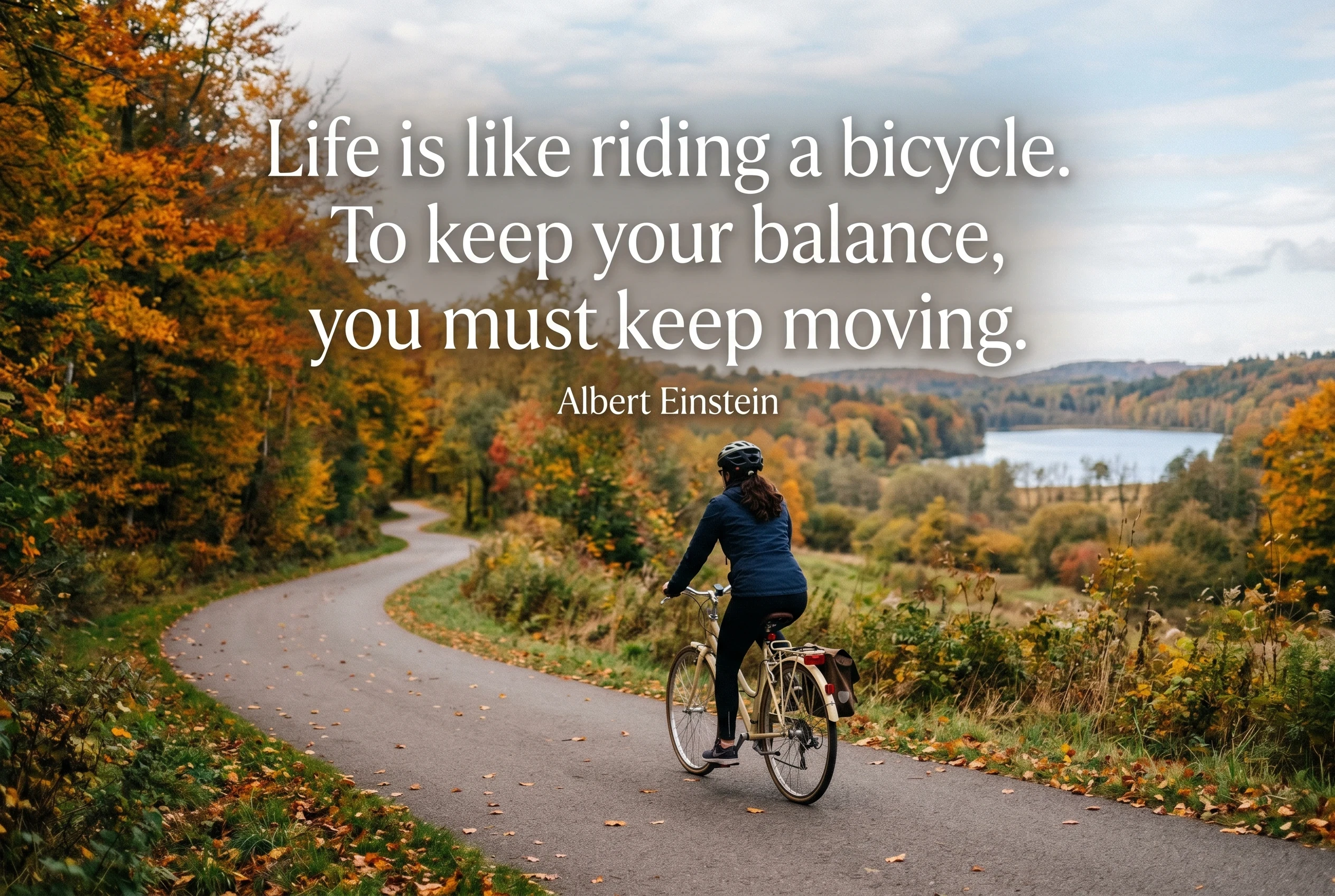
Bicycle Quote Image
First, I made the bicycle quote image and this is what I got
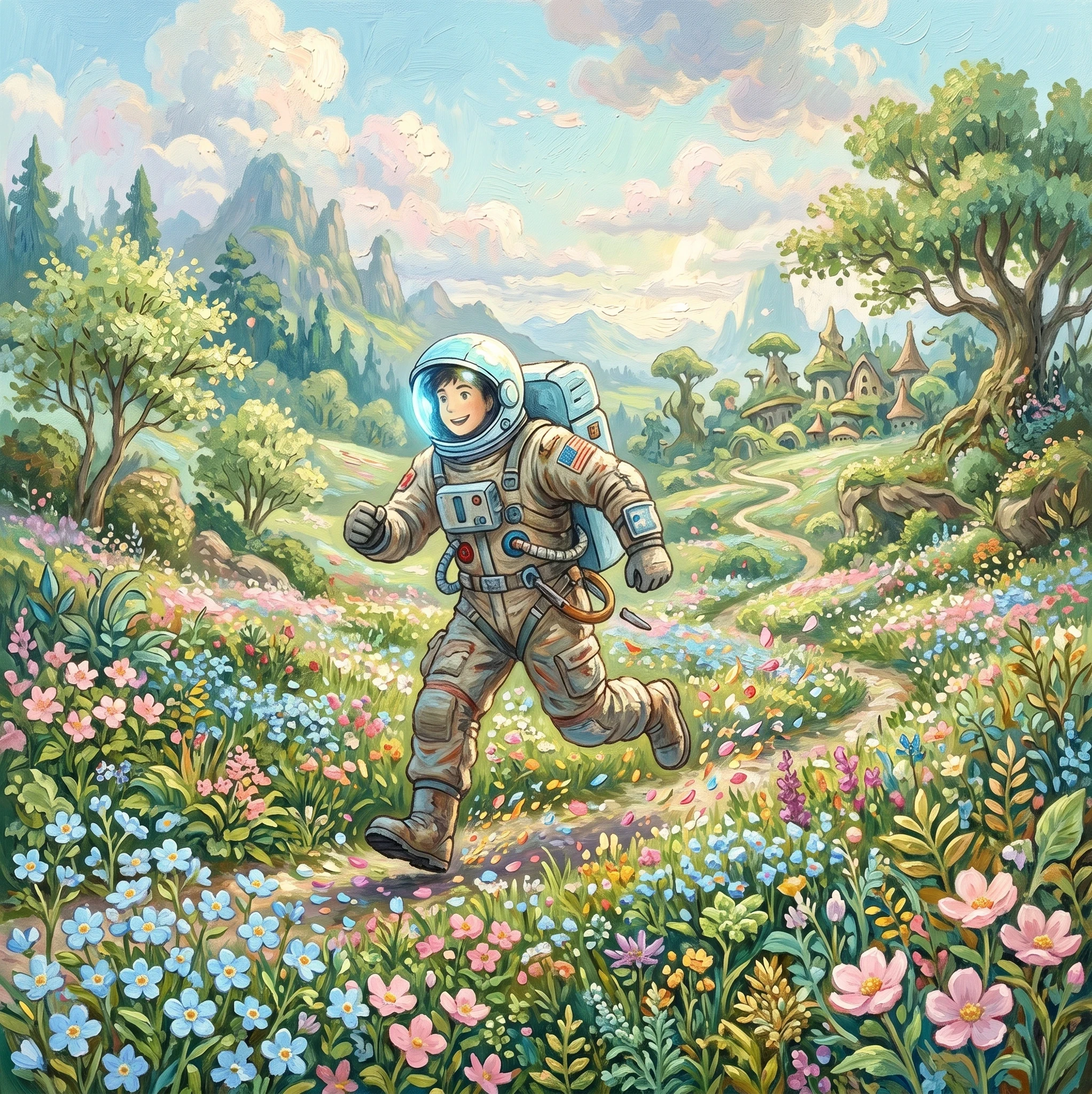
Astronaut Oil Painting Image
Next, I made the Astronaut oil painting image and this is what I got
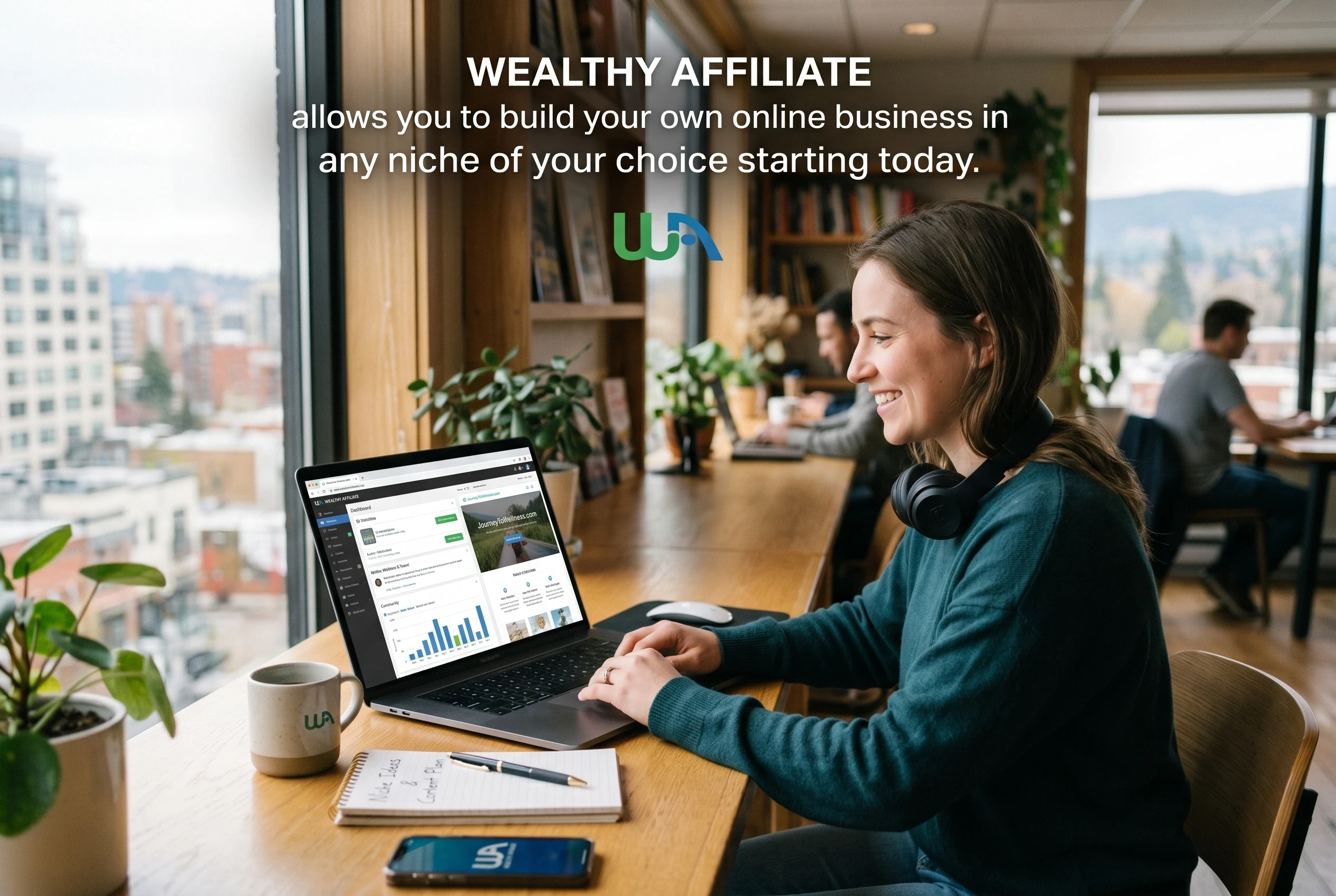
Wealthy Affiliate Image
Then I made the Wealthy Affiliate image and this is what I got
My Opinion About The Results
As you can see these turned out much better. I used the same prompts that I used with Bing Image Creator and choose the same aspect ratio for each image.
And what you saw above is what I got. Wealthy Affiliate Image Studio knocked it out of the park as I expected.
It made a small mistake on the third image about WA as the logo is the wrong colour. But I didn't ask it to include that so I'm not too worried. It still did much better than Bing Image Creator.
The results were what I was expecting, and WA Image studio is the clear winner here. It's the better tool and the one you should focus on using for any AI images you want to create.
That concludes all the tests and experiments I did recently with both Bing Image Creator and WA Image Studio.
Important Details About Bing Image Creator
Before I give you my final thoughts and wrap things up, I wanted to share some important details about Bing Image creator you need to know.
The most important things you need to know is there are image and video generation limits with this tool. I'm also going to give you some resources in case you want to try out Bing Image Creator yourself.
So, here's what you need to know.
Image Generation Limitations
As with any free tool there are limitations with the number of images and videos you can generate each day with Bing Image Creator.
You get 15 free fast image generations per day and after that you'll automatically be switched to standard speed which gives you unlimited generations at a much slower speed.
If you want more fast image generations, you can use your Microsoft Rewards Points.
With videos you will always get standard speed automatically and it says that takes a long time. So you'll likely want to use your Microsoft Rewards points if you're going to create videos.
I recommend you read the FAQ section before you use Bing Image Creator, so you know the limitations and understand how the tool works.
Bing Image Creator Resources
In case you want to try out Bing Image Creator yourself here's the link to the tool Bing Image Creator.
You should also read the content policy if you're going to use this tool and you can find that here.
If you want to read about your privacy with Microsoft Bing Image Creator or any other Microsoft tool you can do so by reading Microsoft's privacy statement which you can find here.
Finally, don't forget to read the FAQ section before you start using the tool. It will answer most of the questions you have about Bing image Creator.
You can find it at the bottom of the Bing Image Creator page once your signed in or you can click the help button to get to it anytime without having to scroll to the bottom of the page.
Alternatively, you can also find it at this link.
I hope these resources help you learn more about Bing Image Creator. Let me know if you get stuck or need any further help with this tool.
My Final Thoughts About Bing Image Creator
Overall, Bing Image Creator isn't a bad tool. It's just limited like all free tools. I enjoyed testing and I might do more testing in the future especially with the video side of things.
WA image studio is the most powerful image generation tool I've used so far and it only keeps getting better.
Stick to WA's AI tools and you can't go wrong.
That being said I was surprised by Bing Image Creator though. I mean come on, it's made and owned by Microsoft. So, it should be better than what it is.
I hope to see it improve one day in the future. But for now, I'm sticking with WA and Canva for all my image needs.
Conclusion
In Conclusion, Bing Image Creator is a free and basic AI image and video generation tool. Despite being owned and maintained by Microsoft it's pretty basic.
I would have liked it if the quality was better, it had more settings to configure and there were more features to choose from.
However, it does what it's supposed to do and that's what matters most.
Wealthy Affiliate Image studios beat it by miles, so I'll be stick with that and Canva for all my image needs.
I enjoyed trying out Bing Image Creator and doing all those tests and experiments. It's something I might return to in the future to try out the video side of things and see anything new Microsoft adds to it over time.
Thank you for reading. I'd like to hear from you. Have you tried Bing Image Creator? What did you think of it and the results and comparisons I shared in this blog post? Let me know in the comments. I hope you have a great day, and I look forward to hearing from you.
Share this insight
This conversation is happening inside the community.
Join free to continue it.The Internet Changed. Now It Is Time to Build Differently.
If this article resonated, the next step is learning how to apply it. Inside Wealthy Affiliate, we break this down into practical steps you can use to build a real online business.
No credit card. Instant access.