How I Built A Full Print-on-Demand Product Using Printify + Shopify + WA Image Studio


Published on November 26, 2025
Published on Wealthy Affiliate — a platform for building real online businesses with modern training and AI.

Over the last couple of days I created over 21 products on my Shopify store. Today, I want to walk you through the entire process of creating new merch using an example I created for my Everything RVs & More store. Instead of giving you a general AI tutorial, I wanted to break down exactly how I built a real POD product from start to finish using:
• Shopify
• Printify
• WA Image Studio and Logo Creator
• GPT for image prompts
• Manual mockup generation
• Final product push to store
This post is the actual workflow, not theory or recycled info. If you have a store or plan to start one, you can follow this like a recipe.
Product Build Walkthrough
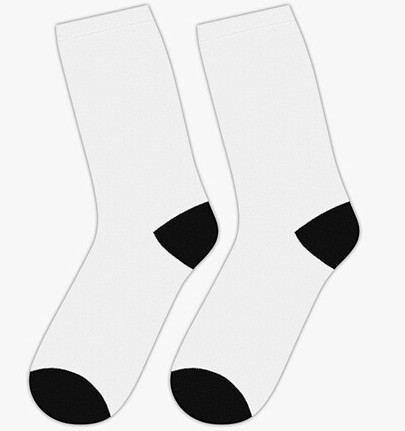
Print on Demand Crew Socks
Step 1
I opened my Shopify admin dashboard.
Step 2
In the left sidebar, under Apps, I selected Printify. Instead of opening it externally, I run Printify inside Shopify so I stay in one workspace.
Step 3
Inside Printify I clicked Catalogue and picked a trending apparel item that fits my niche.
I chose:
Mid Length Crew Socks
Step 4
I copied the full product details from Printify and pasted them into GPT so I could begin generating image direction and pattern concepts.
Product notes included one size only, full wrap print, black toe and heel, 100 percent polyester and sublimation print.
Step 5
Before designing, GPT asked what style direction I wanted the artwork to go.
Instead of pairing art and product after the design, I looked at the template and made the choice that made sense for this product.
Full wrap pattern works best for socks.
Step 6
Inside Printify I clicked Start Project.
Only one provider existed for this product, Colorway.
Step 7
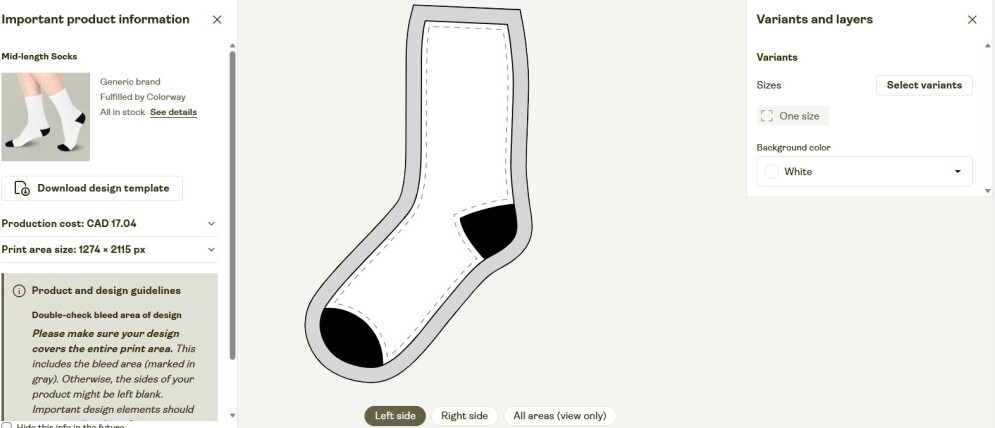
I examined the print layout and took the print dimensions into GPT.
Print area: 1274 x 2115 px
Step 8
GPT asked what visual format I wanted.
I confirmed a seamless repeating RV camping pattern.
Step 9
I responded back with the design direction.
I want a full wrap pattern that reflects RV life, camping and off-grid aesthetics. Must work on both socks and align evenly when repeated.
Step 9B
GPT provided me with a professional print prompt. This becomes the base of the product artwork.
Step 10
I copied the prompt into Wealthy Affiliate Image Studio.
I did not generate yet.
Ready to put this into action?
Start your free journey today — no credit card required.
Instead I refined the text manually to ensure Image Studio produced a flat pattern rather than a mockup scene. I removed anything that could be interpreted as staged photography.
Here is the final cleaned prompt I used:
Create a seamless repeating RV lifestyle pattern image.
Canvas size must be 1274 × 2115 px and completely fill the bleed area.
Use icons and elements such as small travel trailers, pine trees, campfires, solar panels, lanterns, mountains and simple road stripes.
Pattern spacing must be even so that this image can align visually when printed.
Use strong line work with flat color fills, no gradients or shadows, keeping detail bold enough to survive print shrink and stretch.
Color palette charcoal, forest green, sand, cream, burnt orange accent.
Design only. No mockups. No templates.
I selected a 2:3 ratio, closest to required print sizing, no reference images and no art presets. Then hit Generate.
Step 11
After generating four variations, I chose the fourth image.
I downloaded it and uploaded it directly into Printify.
Step 12
Preview mode showed all built-in template mockups:
Front
Back
Front plus Left
Front plus Right
Left Side
Right Side
Flat Left
Flat Right
No lifestyle mockups exist by default. This is an important note when you plan to market visually.
Step 13
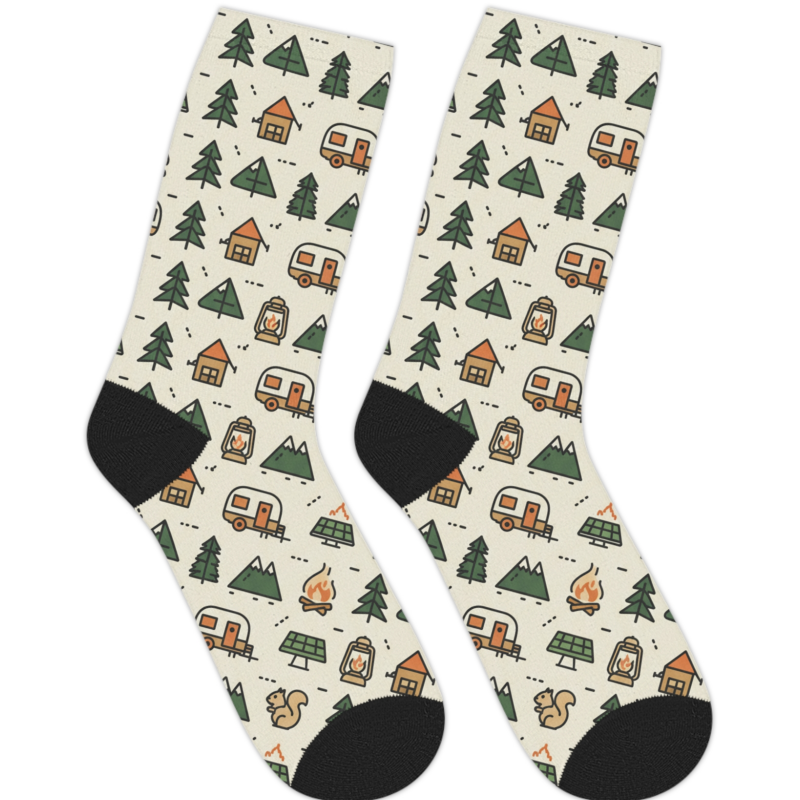
I saved the Flat Right Sock Mockup from Printify (pictured above).
This image becomes the base file for Imagen lifestyle prompts.
Step 14
I saved the product which sent me into the Mockup Library.
Only four mockups transfer automatically into Shopify.
Front
Back
Front plus Left
Front plus Right
Flat sides do not transfer unless I upload them manually later.
Step 15
To get better product media I needed lifestyle imagery.
I asked GPT to produce real mockup prompts using my flat sock file.
I selected two of the prompt ideas.
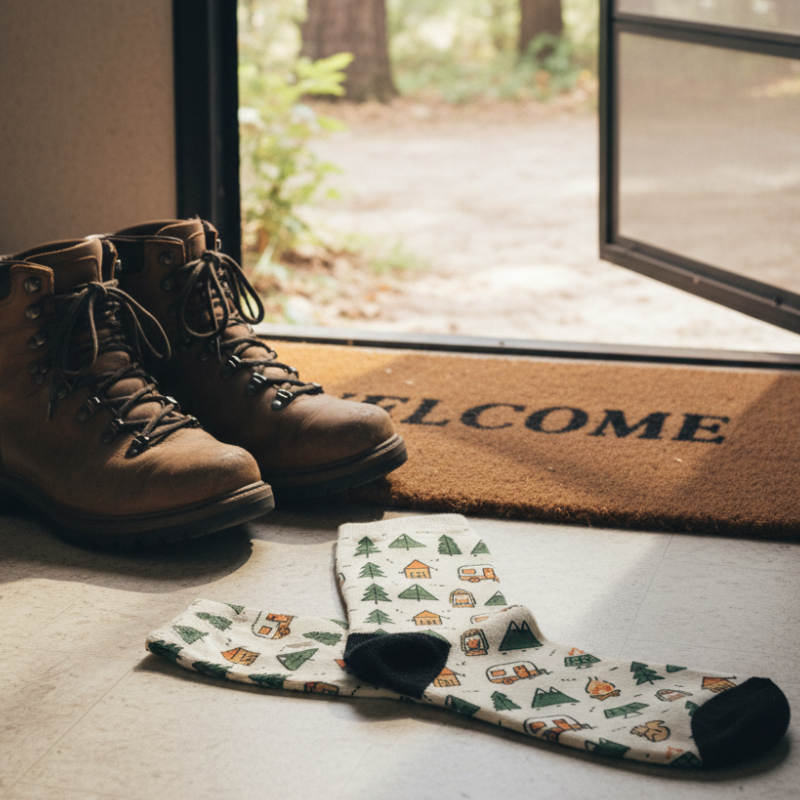
Prompt 1: RV Entryway Boot Drop
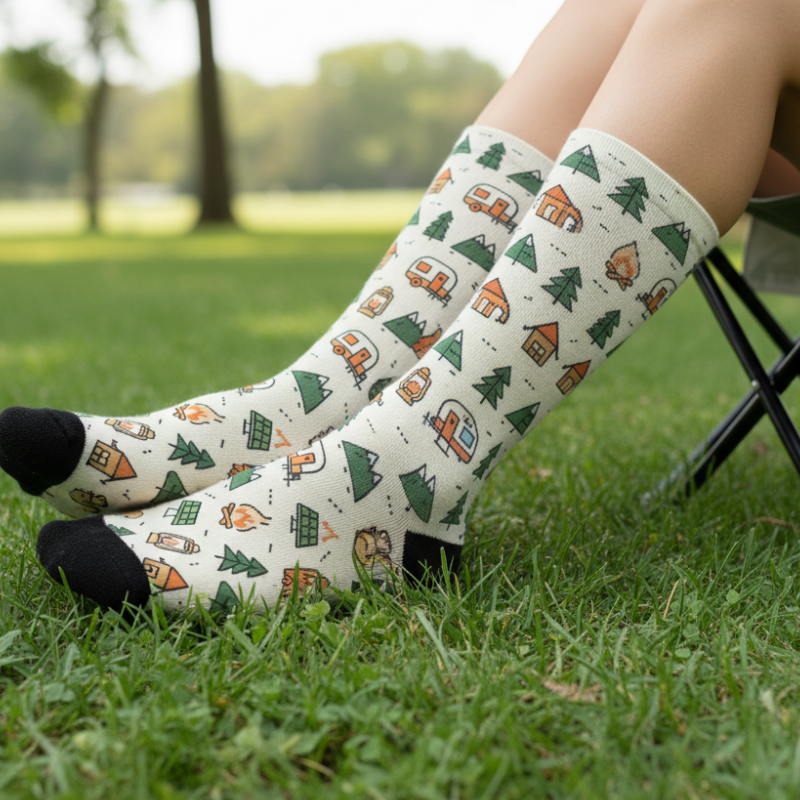
Prompt 5: Socks worn by someone sitting in a camp chair outdoors
Step 16
GPT returned the real mockup prompts for Image Studio.
Example of one:
Use Image A as the printed sock design and place the sock as a realistic product in an RV entryway scene beside a pair of hiking boots and a welcome mat. Soft natural light, real texture, real shadows, no reflections, no gloss, no floating edges.
I uploaded the Flat Sock panel to Image Studio, ran both prompts, and saved two lifestyle mockups.
Step 17
With mockups complete, I returned to Printify.
Step 18
In the Mockup page I clicked My Uploads, uploaded my new lifestyle mockups, ensured Replace Previous Mockup Selection was Off and continued.
Note: Only turn Replace On when there are zero mockups or when working with Early Access print products.
Step 19
I selected which images to apply to my listing and saved.
Step 20
Final step inside Printify was optimizing presentation.
I reviewed the auto-generated title and description, added product tags, confirmed store category relevance and chose whether personalization should be active.
Printify now allows personalized fields. Personalized products can sell for 20 percent more which means profit margin increases.
Step 21
I provided GPT my production cost and shipping cost so pricing could be calculated accurately.
My metrics:
Production 17.04 CAD
Shipping 4.79 CAD
Landed cost 21.83 CAD
Step 22
Pricing Recommendation Output
Everyday Retail 29.99 CAD
Personalized Version 34.99 CAD
Sale Event 26.99 CAD
I entered pricing and selected Publish.
Product is now live on Shopify.
Bonus: Embroidery Method for WA Logo Generator
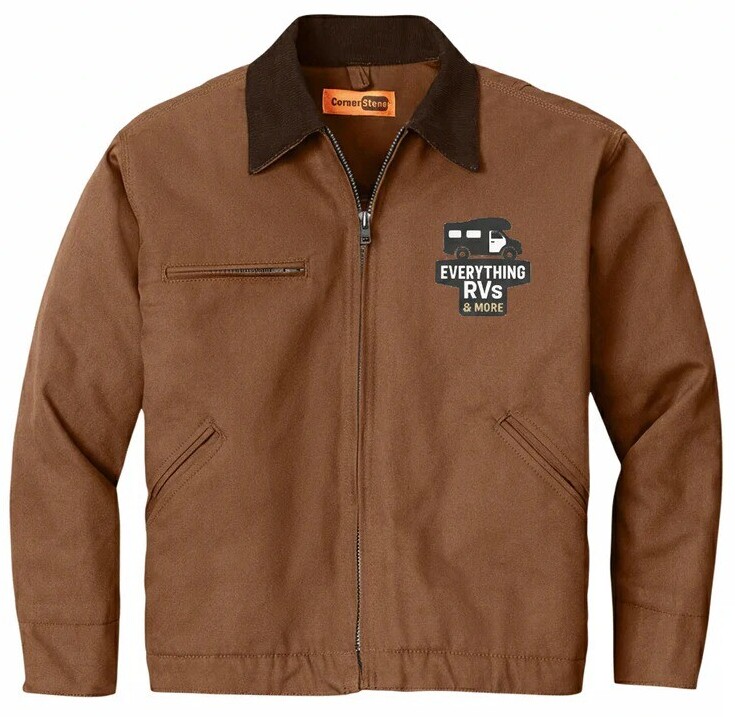
For designs intended for embroidery I found better results using WA Logo Creator rather than Image Studio.
Process:
- Open Logo Creator and start a new brand with any placeholder name.
- Paste your GPT generated prompt into brand description.
- Continue and choose any color style. Ignore suggested layouts.
- On the next text block paste your prompt again.
- Generator outputs clean vectors with real transparent background.
The final result embroiders cleaner than regular image studio outputs.
Closing
This walkthrough wasn’t done from memory.
It was done live, step by step, building a real product in my store.
You now have the exact workflow I used from prompt creation to Printify sync, professional mockups and final Shopify publish.
If you want guidance on your own POD flow, branding prompts or workflow setups, drop a comment and I’ll help wherever I can.
Share this insight
This conversation is happening inside the community.
Join free to continue it.The Internet Changed. Now It Is Time to Build Differently.
If this article resonated, the next step is learning how to apply it. Inside Wealthy Affiliate, we break this down into practical steps you can use to build a real online business.
No credit card. Instant access.